Caring Together
App Version v4.0.0Shared Groves: Roles, News and Leaving
What the three roles (Keeper, Can tend, Can view) can each do; how a companion's request to remove an item is confirmed; seeing who changed what in Grove News; what happens when a plan changes; and how to leave or stop sharing.
Updated on Nov 3, 2026 ~21 min read
On this page
A shared grove has one keeper (the person who created or shared it), and everyone else is a companion. The keeper decides each companion’s role: Can tend or Can view. This page explains what each role can do, and the everyday things you do when looking after a grove together.
No shared grove yet? Start with Shared Groves: Inviting Companions.
Tend This Grove
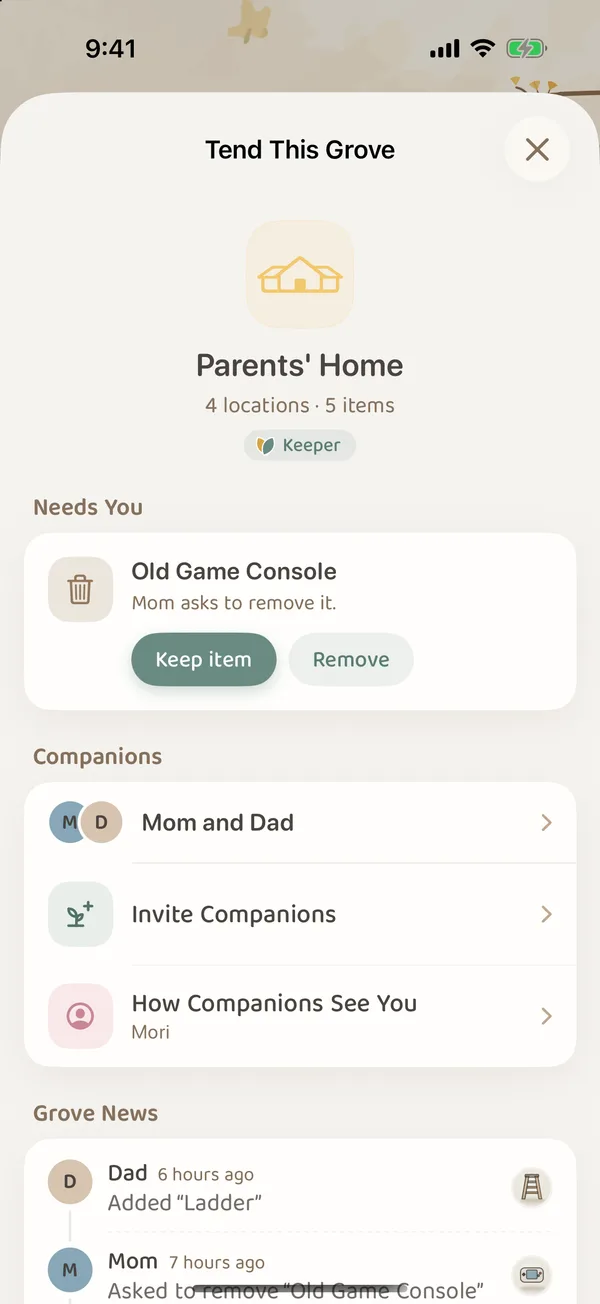
Open a shared grove and tap the two small leaves next to its name to open Tend This Grove (a small green dot appears beside the leaves when there is news). It shows how many places and items the grove has, your role in it, and:
- Needs You: companions’ removal requests, or conflicts from editing.
- Companions: who is looking after this grove together. The keeper also sees Invite Companions.
- How Companions See You: your name and photo.
- Grove News: who did what lately.
- Keeping It Safe: Download Photos for Offline and My Save History, plus Back Up on This Device for the keeper.
- At the very bottom: Delete Shared Grove… for the keeper, Leave This Grove for companions.
What each role can do
| What you can do | Keeper | Can tend | Can view |
|---|---|---|---|
| Browse and search items in the grove | Yes | Yes | Yes |
| Add, edit and move items | Yes | Yes | No |
| Remove items | Straight to Recently Deleted | Asks first; the keeper confirms | No |
| Remove attachments from items | Yes | No | No |
| Invite companions, change roles, remove companions | Yes | No | No |
| Rename the grove, import fields from my categories, see Recently Deleted | Yes | No | No |
| Bring it back to my forest, delete the shared grove | Yes | No | No |
| Leave this grove | Does not apply | Yes | Yes |
Changing a role or removing a companion: in Tend This Grove, tap the companions row to open the Companions page, tap ··· next to a companion, and choose Can tend, Can view or Remove. Tap yourself there to change your name and photo. Tap someone else to give them a nickname only you can see.
For young children, or older relatives who rarely use the app, start with Can view. They can search for where things are without moving items by accident.
Removing items: request and confirm
So that nothing disappears without anyone knowing, removing something from a shared grove needs the keeper’s OK:
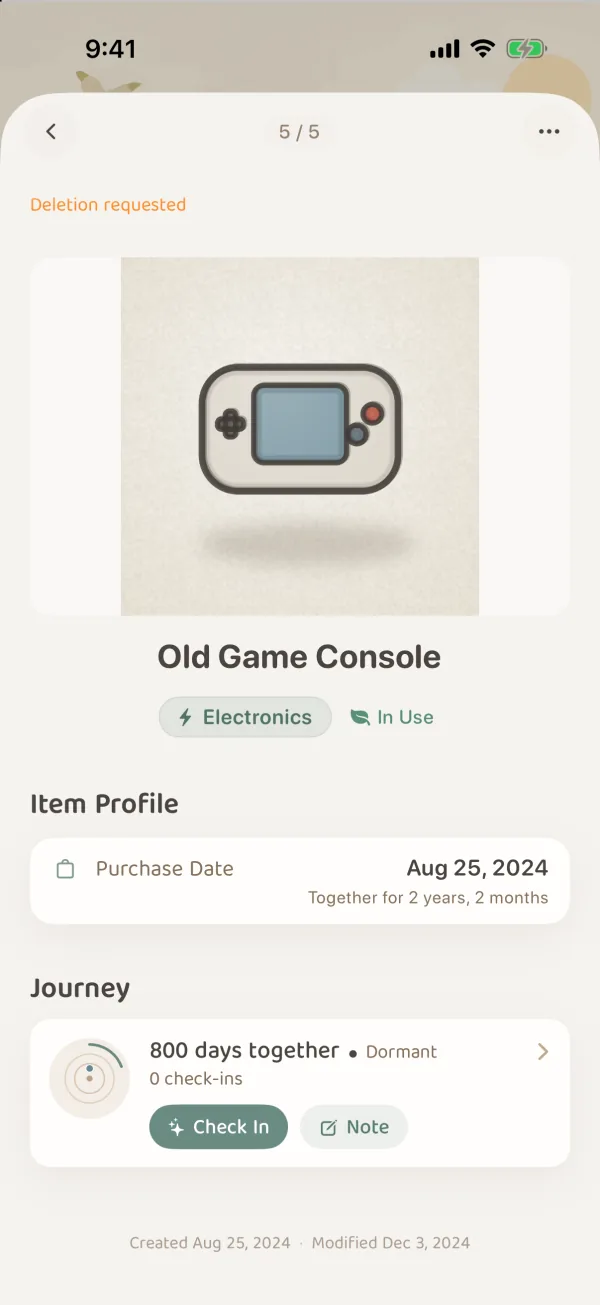
- When a companion who Can tend deletes an item on its page, they see Request deletion. Once the request is sent, the top of the item page shows Deletion requested.
- Under Needs You in Tend This Grove, the keeper sees ”… asks to remove it.” The keeper can choose Keep item, or tap Remove and then Move to Recently Deleted.
- The keeper can restore items from Tend This Grove › Recently Deleted.
Recently Deleted is the shared grove’s own place for removed things, and only the keeper can open it. Items you delete from your own forest are in More › Recycle Bin. Items removed from a shared grove do not go to your Recycle Bin; look for them in that grove’s Recently Deleted.
A few more rules:
- Attachments in a shared grove can only be removed by the keeper, so no one loses a file by accident. In a shared grove, you can add up to 20 attachments and 20 connected items at a time, and each item holds up to 100 attachments.
- Items in a shared grove cannot have a proper farewell; they can only be removed. The farewell ceremony and the Memory Forest are only for items in your own forest.
- When you move one of your own items into a shared grove, the app asks first: once you save, the item and its photos, notes and attachments move into that grove, and companions can see and manage it too.
Grove News: who changed what
When companions add, update, ask to remove or restore items, it is all recorded in Grove News, grouped by Today and Yesterday, with who did it and when.
- Tap See All under Grove News in Tend This Grove. You can also open news from all shared groves in More › Shared Groves.
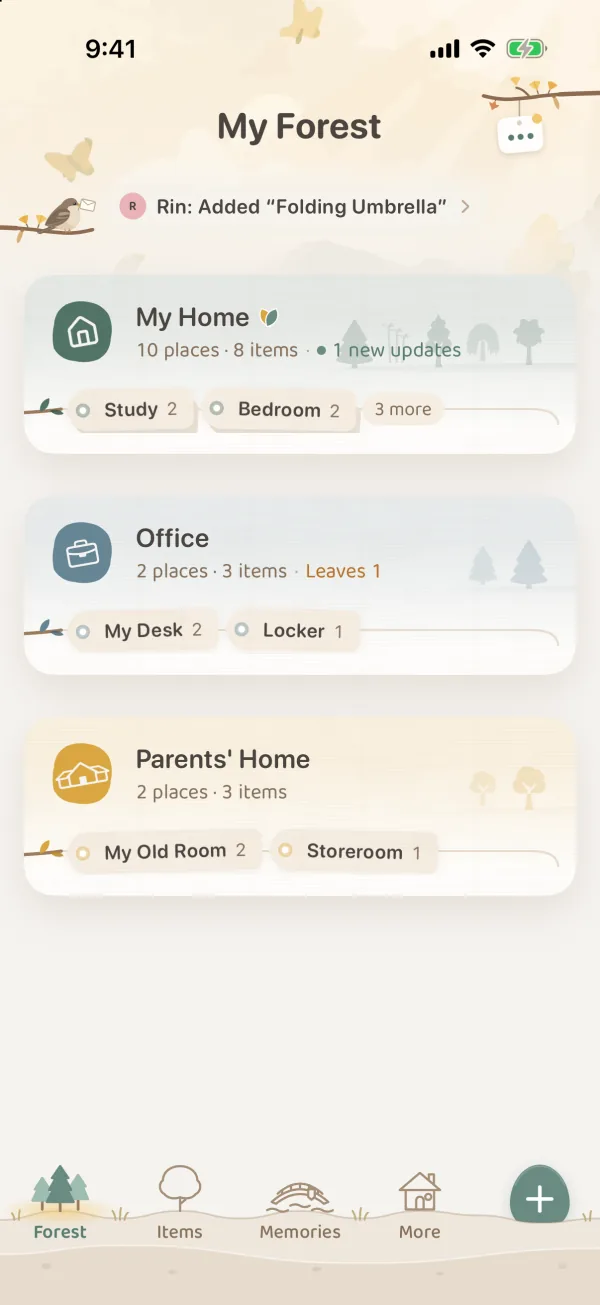
- In My Forest, a shared grove’s card shows something like “1 new update” or “1 to review”, and the latest news also appears at the top of the page.
- The tree rings on an item page record what happened to the item in the shared grove too, such as “Mom asked to remove it” or “Dad brought it into the grove”.

When two people change the same item
If another companion changes the same item while you are editing it, the app tells you when you save: “Someone changed this item.” Tap Compare to choose, in Compare Versions, whose version to keep for each difference. Or choose Use the Shared Version. Your own version stays in My Save History on this device, so you can still look at it later.
Without a connection, your changes are saved on this device first and sync to your companions once you are online.
What happens when your plan changes
Only the keeper’s plan affects a shared grove. Companions’ plans do not.
- The keeper has more companions than the new plan allows (for example, switching from Premium to Plus): companions keep their roles for a 3-day grace period. Before the date shown, go to the Invite Companions page and tap Choose Who Stays. If you do not choose, the most recently active companions stay, and the others leave all your shared groves. Their own forests are not affected.
- The keeper switches to the free plan: the free plan does not include iCloud sharing. After the grace period, the keeper’s shared groves rest (this is the whole grove’s state and has nothing to do with hibernating items): everyone, including the keeper, can only view them. Upgrade to look after them together again. Or bring a grove back to your own forest from Tend This Grove. A resting grove can be brought back at any time, on any plan.
Leaving or ending sharing
A companion leaves: tap Leave This Grove at the bottom of Tend This Grove. The grove disappears from your forest, but the keeper and other companions keep it. When you leave, you can tick Keep a Private Copy to keep what is already on this device as a grove of your own.
The keeper removes a companion: choose Remove from ··· on the Companions page. They can no longer see the grove, but what is already saved on their device is not taken back. They can choose to keep it as a private copy.
The keeper brings it back to their forest: choose Bring Back to My Forest… (from the grove card’s touch-and-hold menu, or in Tend This Grove). Sharing stops, and the grove becomes your own grove again, with every place, item, photo and attachment kept. This needs iCloud, and companions can only view while it runs. Companions can keep private copies of what is already on their devices.
The keeper deletes the shared grove: choose Delete Shared Grove…. The grove is deleted from your forest and every companion’s forest, and this cannot be undone. Companions can keep private copies of what is already on their devices.
A private copy only includes what has already been downloaded to this device. Photos or files that were never downloaded are not in the copy. The copy also has to fit within your current plan. If it does not, upgrade or make room first.
Keeping a shared grove safe
- Back Up on This Device (keeper): tap it under Keeping It Safe in Tend This Grove to save a copy of the grove on this device. If this iCloud account later loses access to the grove, you can restore it from Shared Grove Backups in More › Shared Groves.
- Download Photos for Offline: photos and attachments in a shared grove download only when opened. Before you go somewhere without a connection, you can download them all.
For backing up your own forest, see Forest Backup & Restoration.