Everyday Care
App Version v4.0.0Baskets and Packing Along the Path
Gather the things one occasion needs into a basket: switch between Cards, Shelf and Tags, note what you still want to get, and before you set off, open the checklist and pack along the path, one place at a time.
Updated on Nov 3, 2026 ~16 min read
On this page
A basket gathers what one occasion needs: a business trip, things lent out, an emergency pack, favorites. The items still live in their own groves and places; the basket only notes that they belong to this occasion. One item can be in several baskets.
Opening baskets
In Items, tap the basket icon to the left of the search bar. The first time, the page is empty: tap + at the top right, or Create your first basket.
When you make a basket, fill in:
- Name: for example “Business Trip” or “Emergency Pack”.
- Description (optional): such as “Off to Osaka next Tuesday”. It shows under the basket’s name.
- Color, or an atmosphere photo as its cover.
Three views
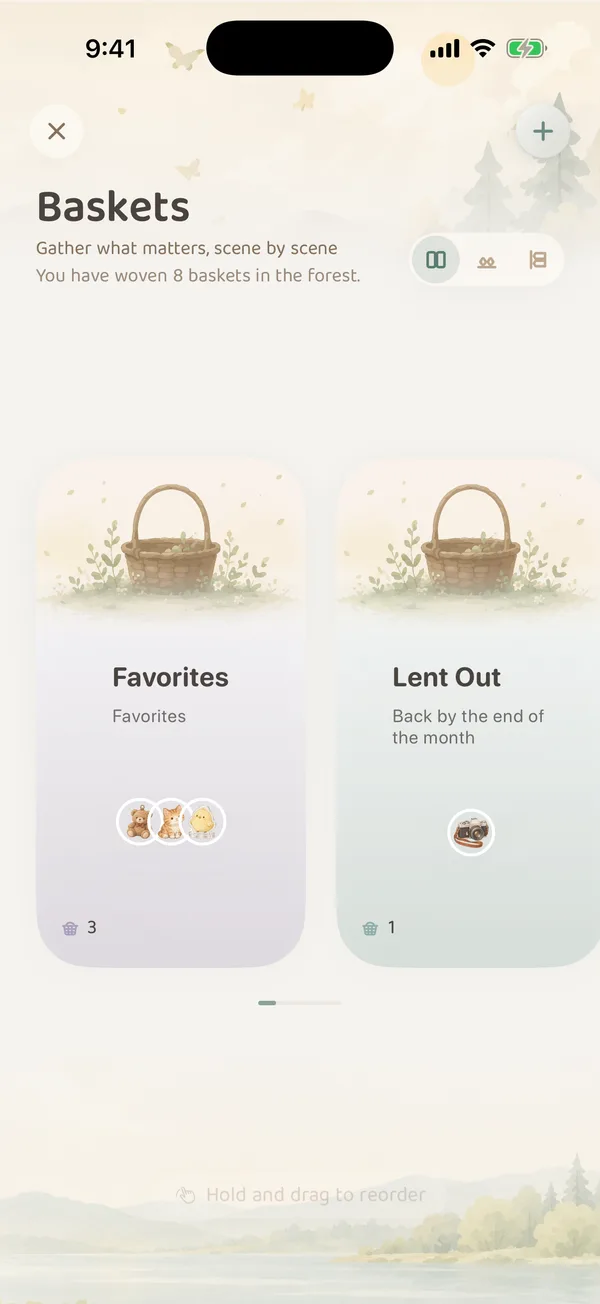
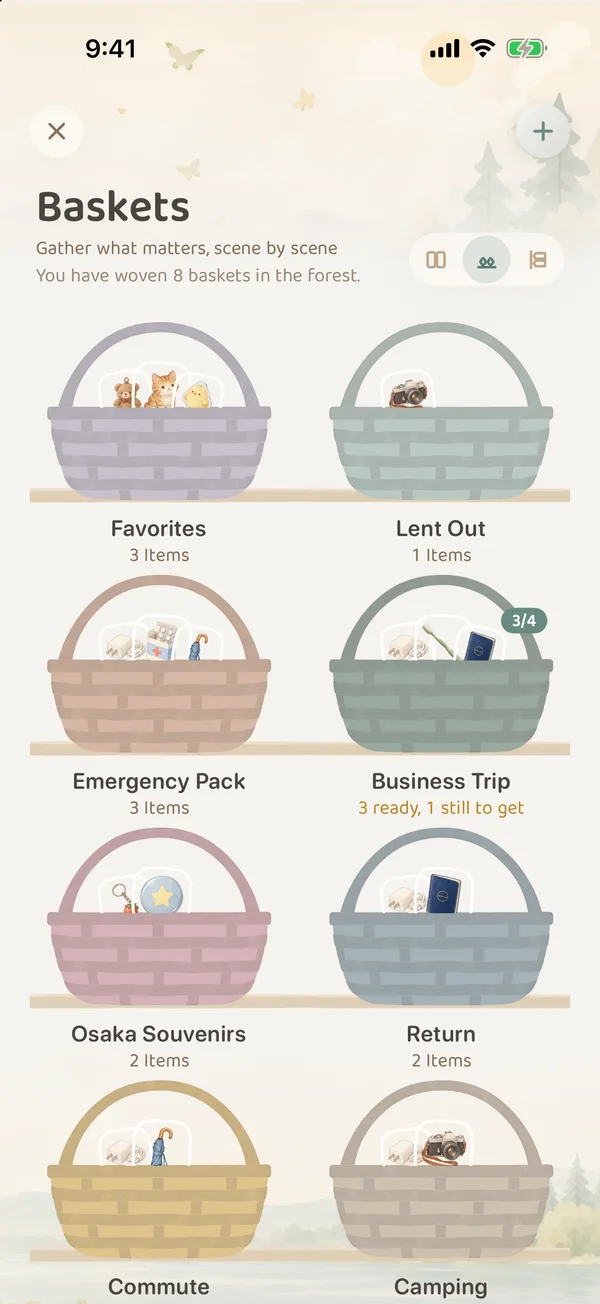
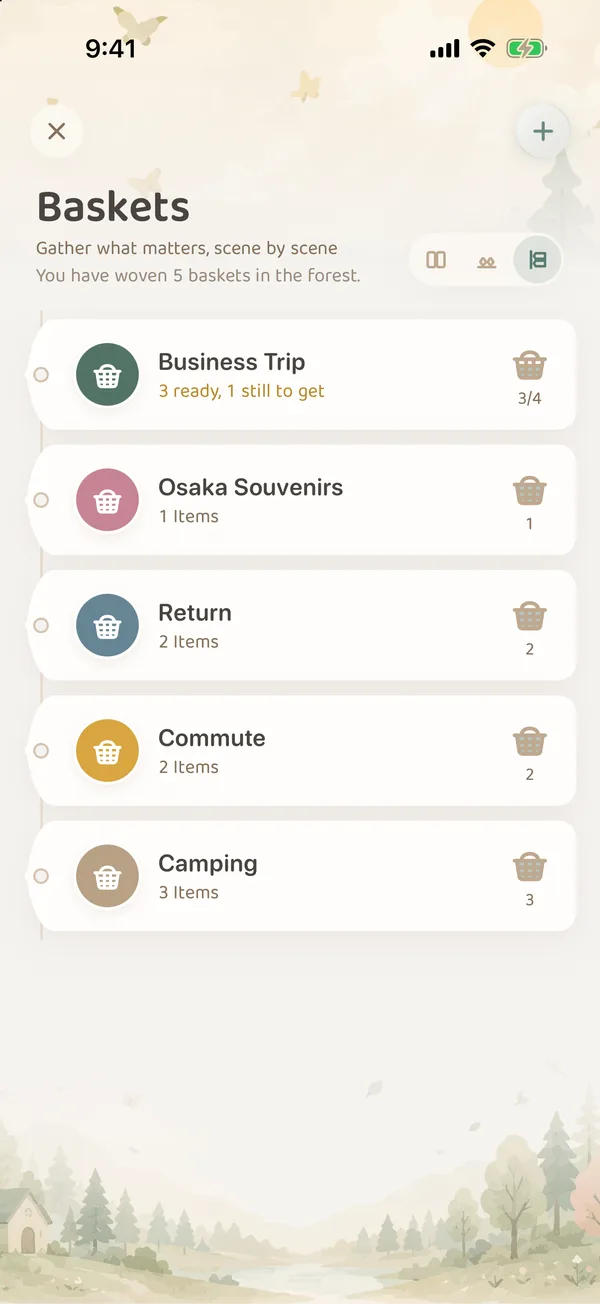
Three buttons at the top right of the baskets page switch between three views:
| View | Good for |
|---|---|
| Cards | One basket at a time; swipe left and right. Touch and hold a basket, then drag to reorder |
| Shelf | Baskets on shelves, showing at a glance how many items each holds and how many are still to get |
| Tags | One basket per row, quick to scan when you have many |
Putting things in
Open a basket, tap + beside In the Basket, search for and tick the items, then tap Add.
You can also start from Items: select several items, then tap Basket in the tidy-up tools at the bottom and pick a basket. If none fits yet, write a name below and choose Make & Put In to create a basket with those items already inside.
An item in a basket wears a small basket charm on its own item page, so you can see which baskets it belongs to.
The sort menu to the right of In the Basket orders items by date added, name, expiry date, purchase date, or your own order.
Wish List
The Wish List at the bottom of a basket is for things you do not have yet, like the plug adapter you need to buy before a trip. Tap Something to get… and just type a name. There is no need to create an item first.
- Once you have bought it and recorded it in your forest, tap Link Item on that row to connect it to the item in your forest.
- While a basket has things you want to get, it reads “3 ready, 1 still to get”, and the shelf shows 3/4.
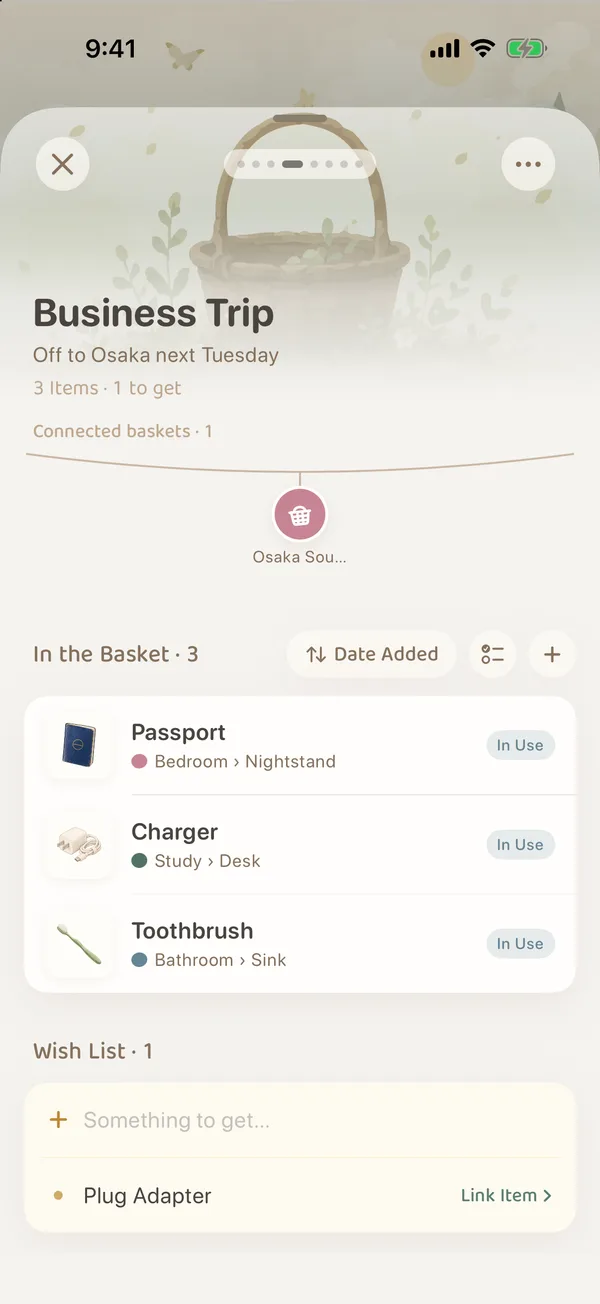
Baskets can be connected to each other too, such as “Business Trip” and “Osaka Souvenirs”. See Item & Basket Connections.
Before you leave: packing along the path
When it is time to pack, a basket becomes a checklist that takes you to each place in turn.
- Open the basket and tap the checklist button beside In the Basket (Start Packing).
- The items are grouped into stops by where they live, such as “My Home · Study · Desk” or “My Home · Bedroom · Nightstand”, each saying how many to take. Items without a place come last.
- Tap the circle in front of an item as you pick it up. The card above shows “1 of 3 packed” and where to go Next. Tap Next to scroll to that stop.
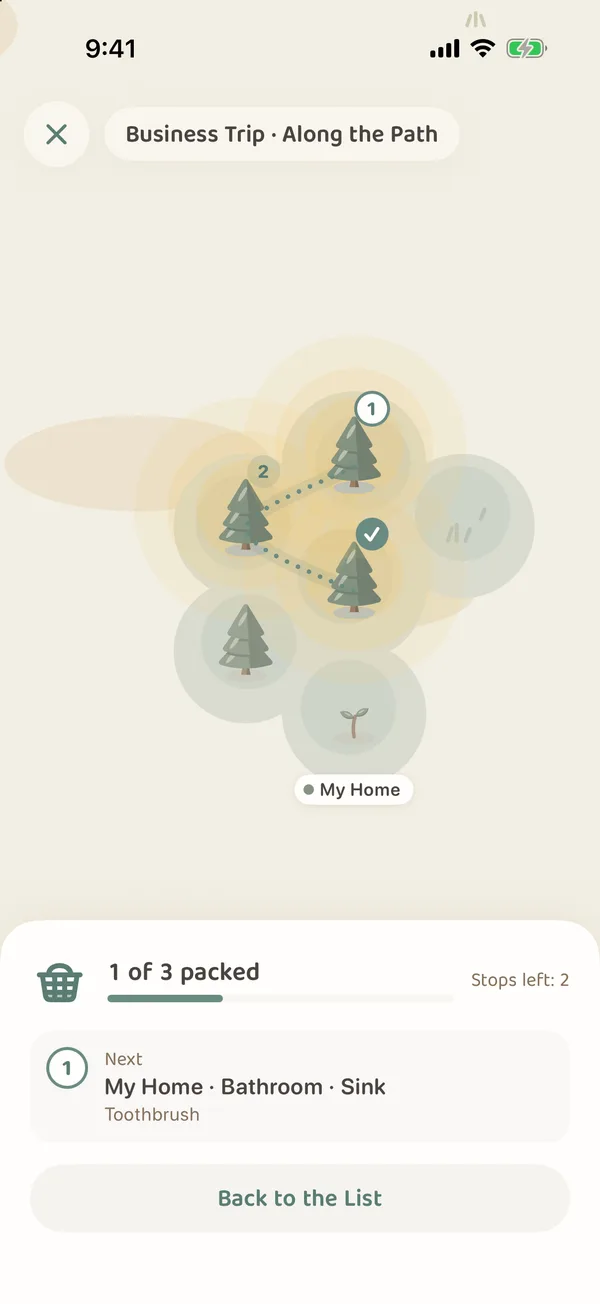
- To see where those places are at home, tap Map on the card. The forest map marks every stop, joins them with a path, and shows how many stops are left. Tap Back to the List to keep ticking.
- When everything is in, tap Done Packing.
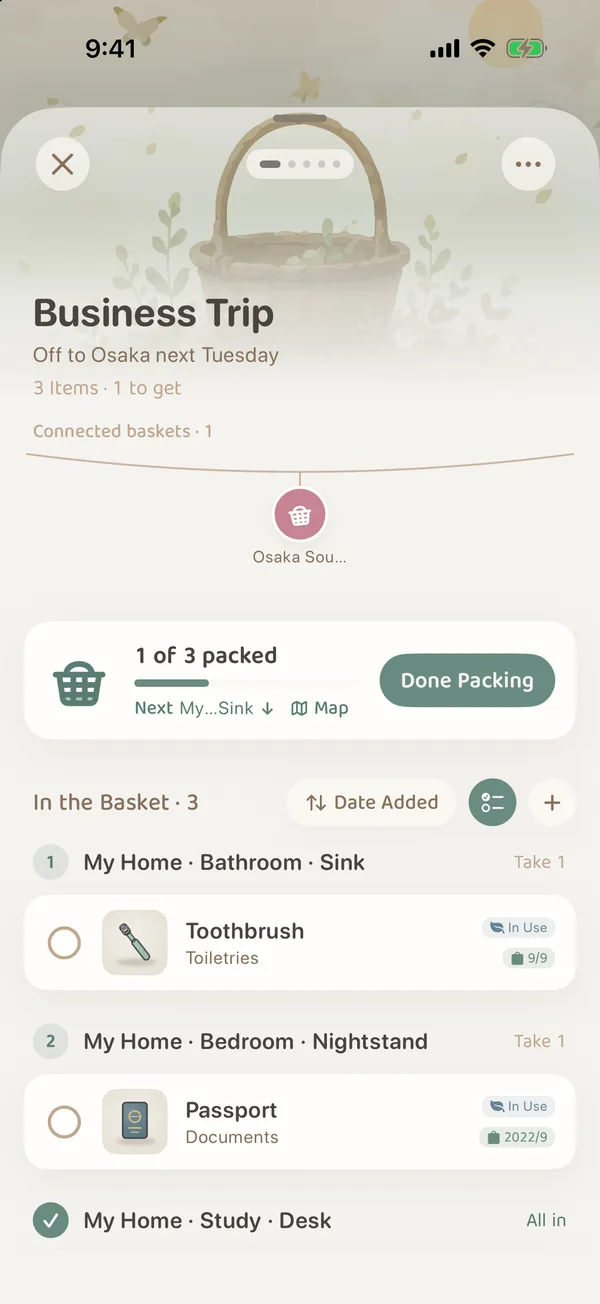
Tap Done Packing with everything ticked, and the basket starts fresh the next time you open it. Tap it halfway and your ticks are kept; a small dot on the checklist button reminds you that you can pick up where you left off. To start over, choose Reset Checklist from ··· at the top right (it only appears once something is ticked).
An item only has a stop on the map if it has a place. If nothing in the basket has a place yet, the Map button does not appear on the card.
Looking after baskets
The ··· menu at the top right of a basket also has:
- Edit Properties: change the name, description, color and cover.
- Connect Baskets: link related baskets.
- Empty Basket: take every item out; the basket stays.
- Delete Basket: remove the basket; the items in it are not deleted.
Baskets belong to you alone. Items from a shared grove can go into your baskets too. If you leave that grove, those items are taken out of your baskets along with it.
What baskets are good for
- Packing lists: a business trip, a camping weekend, things to take on a visit home. Pack along the path before you set off.
- Lent out: books and tools lent to friends, with “Back by the end of the month” in the description. To record that something is lent out, the Lent usage status is the better fit. A basket helps you see several things lent to the same person together.
- Emergency pack: put your emergency supplies in and give them expiry dates. When they come due, they fall into Leaf Gathering.
- Favorites: just to see the things you love together.
For things that always go together, like a camera and its lenses, Connected Items is a better fit. A basket is for a set of things one occasion needs.