Data & Sync
App Version v4.0.0Forest Backup & Restoration
Seal a backup of your forest, send a copy to Files, and restore from that file when you switch devices or something goes wrong. Also covers what a backup holds, how a restore merges, and how to back up a shared grove.
Updated on Nov 3, 2026 ~27 min read
On this page
A backup seals your whole forest into one .forest file. Make one before you switch phones, before a big clear-out, or just to keep a spare. Later you can bring your forest back from that file.
A backup is not the same as iCloud sync. Sync keeps your devices the same, so something you delete is deleted everywhere. A backup keeps the forest as it was at one moment. For the difference, see Backup & Sync.
Backups in My Backups live only on this device. If you delete MononoMori or lose the device, they go with it. After you make a backup, use Save to Files to keep a copy in iCloud Drive or on a computer.
Before you switch to a new phone, three steps are enough:
- On the old phone, open More › Data and tap Seal a Copy of Your Forest.
- Further down the same page, open that backup in My Backups, tap Save to Files and save it to iCloud Drive (or AirDrop it to the new phone).
- On the new phone, install MononoMori, open More › Data, tap Restore from a File and choose the file.
If you bought Plus or Premium, first tap Be a Guardian on the forest card in More on the new phone, then tap Restore Purchases. See Forest Guardian Plans. After that you can also skip the file: turn on iCloud sync and choose Download from iCloud. See “Moving to a new device” below. Shared groves are not in the backup: sign in to the same Apple Account on the new phone, open MononoMori, and they come back on their own.
Opening Data Management
- Tap More at the bottom.
- Under Care Tools, tap Data.
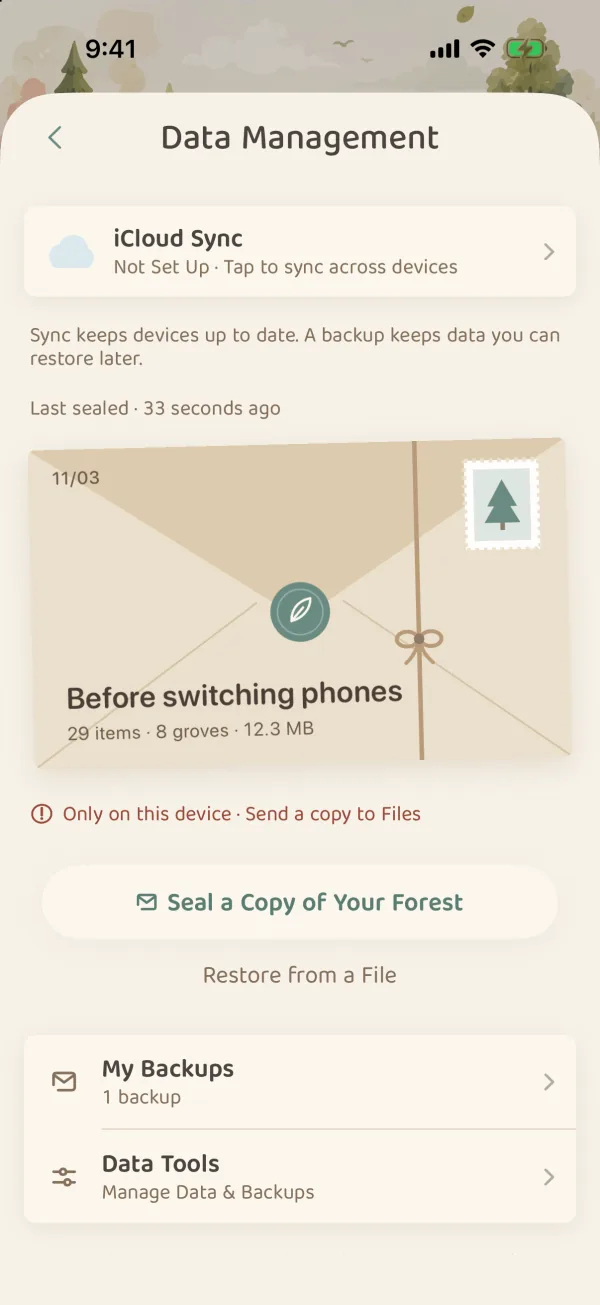
From top to bottom, the Data Management page has:
- iCloud Sync: one line with the current sync status. Tap it to turn sync on or off.
- Last sealed: the date of your last backup and how many items and groves it holds. If you have never made a backup, it says Keep Your Forest Safe.
- Two buttons: Seal a Copy of Your Forest and Restore from a File.
- Two links: My Backups and Data Tools.
Sealing a copy of your forest
- On the Data Management page, tap Seal a Copy of Your Forest.
- If you like, add a note so you can recognize it later, such as “Before Switching”, “Before Moving” or “Before Cleaning”. You can tap one of the quick options below too. The note is optional.
- Tap Back Up Now.
- Wait while it packs and checks everything. Keep MononoMori open until it finishes.
When it is done, the backup appears in My Backups marked Verified. That means the file passed an integrity check. It is checked once more before any restore.
Backups need no subscription; the free plan can make them too. Your first complete manual backup earns the Forest Safekeeping stamp in the Forest Stamp Book.
When some original files are not on this device
Original photos, scans and PDFs in a Treasure Box may only be on the device they were added from. If Sync Originals Too is on, MononoMori first fetches any originals this device is missing from iCloud, then starts packing.
If originals are still missing, the Complete Your Backup page opens and lists them. You can:
- Choose the Original File: pick the file again if you still have it.
- Back Up Without Them: back up as usual. This backup is marked incomplete, and the missing files stay as they are on each device.
- Remove: if you are sure you no longer need it, take that attachment off the item. It is removed on every device signed in to the same iCloud account. The item itself stays.
If the files were added on another iPhone or iPad, a backup made on that device will include them.
What a backup holds
A .forest backup holds everything in your own forest:
- Groves, places, categories and subcategories, tags
- Items, their photos, and the original files in their Treasure Boxes
- Tags in the Memory Forest, farewell styles and Time Chapters
- Baskets, wish list entries, Connected Items and Connected Baskets
- Memory Books
- Stamps in the stamp book, and the lead times you set for single items and categories in expiry reminders
Shared groves are not included. They are not part of your own forest and are backed up separately. See “Backing up a shared grove” below.
Keeping a copy somewhere else
Backups in My Backups live only on this device (see the warning at the top of this page). Send a copy of important backups somewhere else:
- On the Data Management page, tap My Backups and open a backup.
- Tap Save to Files and choose iCloud Drive, a computer or another place. Or tap Share Backup to send it with AirDrop or another way.
- Check in Files, or in the app that received it, that it really saved.
Once sent, the backup carries a Sent to Files postmark. Until then, the page shows Only on this device · Send a copy to Files.
My Backups
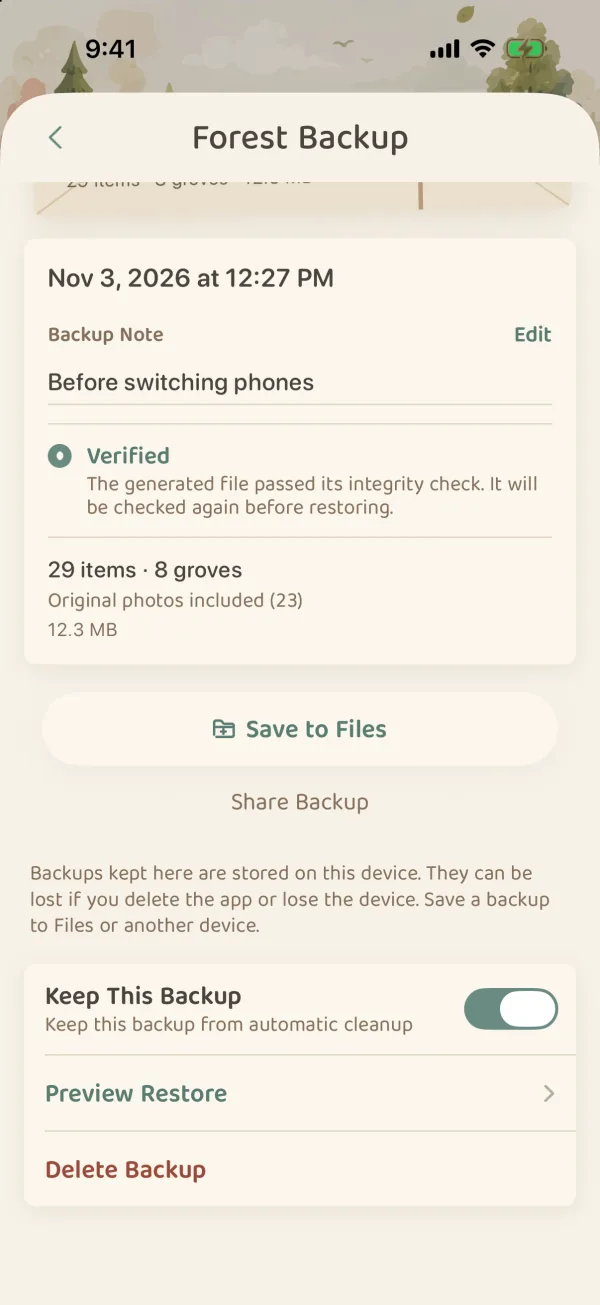
My Backups lays out each backup as a letter. Open one to:
| Action | What it does |
|---|---|
| Backup Note | Add or change this backup’s note |
| Save to Files / Share Backup | Keep a copy off this device |
| Keep This Backup | When on, the backup is never cleaned up automatically |
| Preview Restore | See what it would bring back before you restore |
| Delete Backup | Deletes only this backup file. Items in your forest are not touched |
Older backups without Keep This Backup (the app calls them “older unpinned backups”) are deleted automatically once there are more than 3 of them or they pass 2 GB. Your newest backup is always kept. Backups with Keep This Backup on, and the Pre-restore Protection backups made before a restore, take extra space.
Restoring from a file
A restore adds back anything that is in the backup but not in your current forest. It never deletes anything you have now.
- On the Data Management page, tap Restore from a File and choose a file. Or open a backup in My Backups and tap Preview Restore.
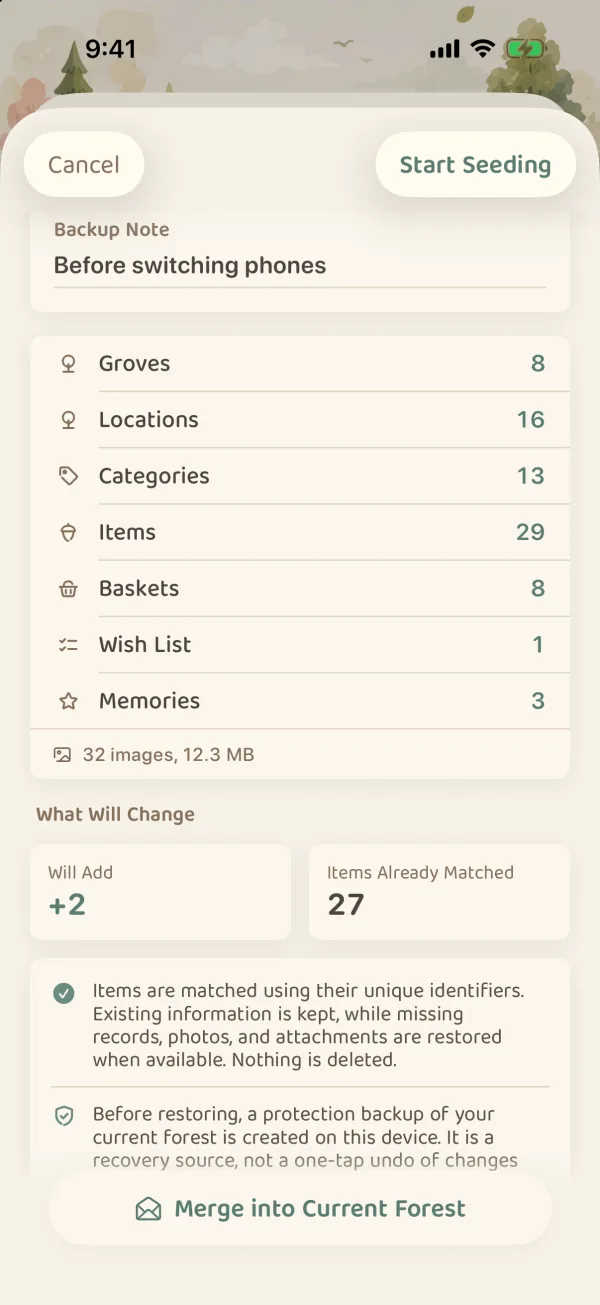
- Look over the Forest Seeding Preview. It lists how many groves, places, categories and items there are, plus baskets, wish list entries and memories when the backup has them, and how many photos and how large they are.
- Look at What Will Change: Will Add lists the items that will be added; Items Already Matched lists those already in your forest.
- If it all looks right, tap Merge into Current Forest.
- Wait for it to finish, and keep MononoMori open meanwhile. When it is done it says Your Forest Is Ready, with how many items, groves and memories were added.
Good to know before you restore:
- It merges, it does not replace: newer backups recognize each item exactly. What you already have stays as it is, and missing records, photos and attachments are filled back in. Very old backups can only match items by name. The preview says so; afterward, check for duplicates.
- A protection backup comes first: before a restore starts, MononoMori saves your current forest as a Pre-restore Protection backup in My Backups.
- It syncs to your other devices: with iCloud sync on, what the restore adds back syncs to your other devices. The protection backup stays on this device.
- Free plan limits: if the merge would go past the free plan’s limits (30 items in stock, counted by quantity; 3 groves; 10 places), the preview says so and the button becomes Become a Forest Guardian to Import. You can also tidy your current forest first, then restore.
- If a restore is interrupted: for example, MononoMori was closed. Back on the Data Management page you will see A Restore Needs Attention. Tap Continue Restore to finish it. Discard Recovery Task only deletes the temporary files; anything already added back stays.
Restore from a File can also read
.csvspreadsheets and old.jsonitem lists. They hold no photos or memories. See Storage Cleanup & Small Tools.
Moving to a new device
- With iCloud sync (Plus or Premium): sign in to the same Apple Account on the new device, open MononoMori, go to More › Data › iCloud Sync, turn sync on and choose Download from iCloud. See Backup & Sync.
- With a backup file: on the old device, seal a copy of your forest and Save to Files or AirDrop it to the new device. On the new device, tap Restore from a File and choose that file.
Either way, it is wise to make a backup first, just in case.
Backing up a shared grove
A shared grove lives in iCloud and is looked after by you and your companions. It is not in the backup of your own forest. The keeper (the person who shared it) can keep a separate copy of it:
- Open Tend This Grove for that shared grove.
- Under Keeping It Safe, tap Back Up on This Device.
The copy is saved on this device. If this iCloud account later loses access to the grove, you can restore it from Shared Grove Backups in More › Shared Groves. While the grove is still shared, there is no need to restore.
If a grove in an older backup has since been shared, the restore warns you: “This backup includes “…”, which is now a shared grove.” Restoring it would make a second copy of the grove. Bring the grove back to your own forest first, or use a backup made after it was shared.
For more about shared groves, see Shared Groves: Roles, News and Leaving.
FAQ
If I send a backup to my family, will they see my updates?
No. A backup is a copy of your whole forest. Once they restore it, it is their own data, and from then on each of you changes your own. To look after the same grove together, use a shared grove. See Shared Groves: Inviting Companions. Also, a backup holds your whole forest, not just one basket or room. Before you send it, think about whether anything in it is private.
Will a restore make the same item appear twice?
Not when the preview says “Items are matched using their unique identifiers”: newer backups recognize each item, so nothing you already have is added again. Very old backups can only match items by name. The preview tells you; afterward, check for duplicates.
I deleted one thing by mistake. Do I need to restore a backup?
No. Look in More › Recycle Bin first. Anything deleted in the last 30 days can be brought back. Items you kept in the Memory Forest are in the Memories tab.