Recording Items
App Version v4.0.0Gather from a Photo
Take one photo to record up to 5 things at once. AI writes their names in pencil first; you check them, stamp a grove, and plant them all together. Also covers AI limits and privacy, and continuous planting when you write things by hand.
Updated on Nov 3, 2026 ~34 min read
On this page
You have a few things you just bought on the table, and no need to fill in a form for each. With Gather, you take one photo. A pencil traces each thing, cuts it out and pastes it onto a page (called the “gather page” below; it has nothing to do with Memory Books), then writes in a name and category for you. You take a look, fix what needs fixing, stamp where they live, and plant them all together.
When Gather helps
- Recording several things at once: a parcel you just opened, one drawer, a table of groceries. A page holds up to 5.
- Clean photos of each item: each thing is cut out on its own, so you do not have to photograph them one by one.
- Not typing names yourself: AI writes the names in pencil first, and you only check them. If you would rather not use AI, you can write the names yourself after the cutting.
To record just one thing with no photo at hand, writing its name on the wooden sign of the add page is faster. To write several by hand, use continuous planting, below.
Opening Gather
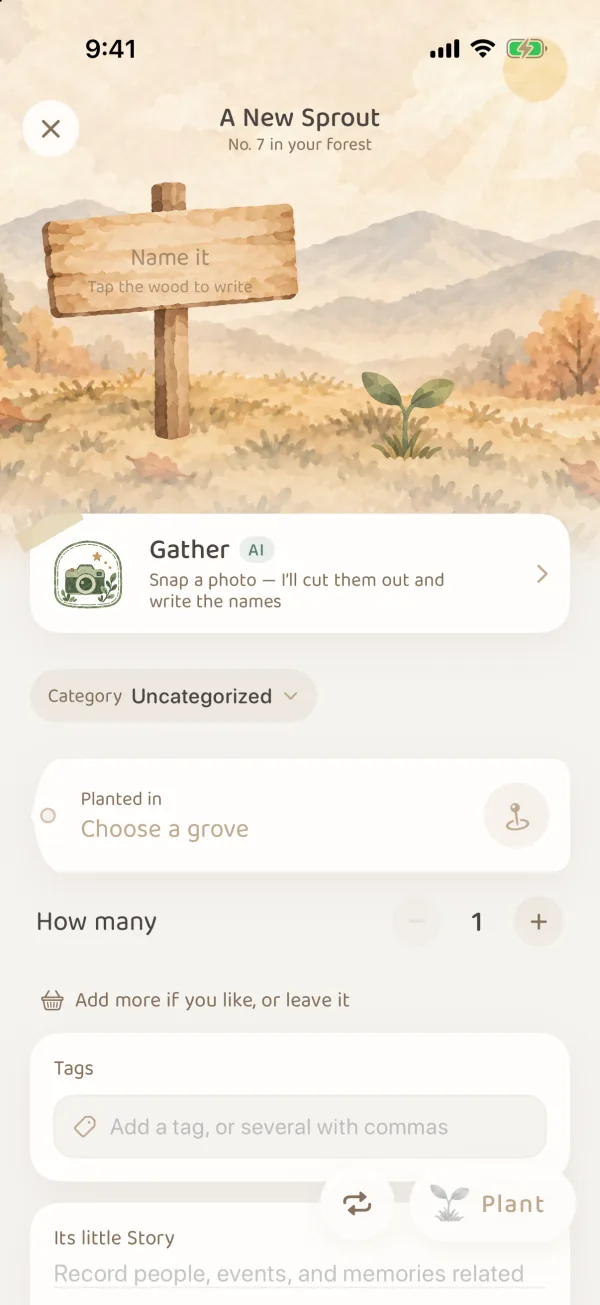
- Tap + at the bottom to open A New Sprout.
- Tap the Gather card under the wooden sign (it says “Snap a photo — I’ll cut them out and write the names”). If you have already started writing on the sign, it shrinks to a small slip in the corner: Gather instead.
If you start adding from inside a grove, everything you gather goes into that grove first, and that grove is also first in the stamp tray.
Step 1: Photograph the whole table
- Put what you want to bring into the forest in the frame. Up to 5 things at once. Spread them a little apart, on a plain background, so they are easier to recognize.
- Tap Photos at the bottom left to use a photo you already took.
- Name language at the bottom right decides which language the names are written in: follow the system, or Simplified Chinese, Traditional Chinese, English, Japanese, Korean, Spanish, German or French. It only affects the names, not the language of the app.
The first time, allow MononoMori to use the camera. If you declined before, follow the prompt to turn it on in system Settings.
Step 2: Strike out what you do not want, circle what was missed
Once the photo is taken, the pencil traces what it found and numbers each one, with “Found N” below.
- Things you do not want: tap one to strike it out. Tap again to bring it back.
- Things it missed: draw a loop around it on the photo with your finger, and it is added.
- Too many: a page holds up to 5. For more, it says the rest can go on the next page. Once this page is full, strike one out before you circle or bring back another.
- Nothing recognized: try another angle or come a little closer and retake the photo, or circle it with your finger. You can also tap Fill it in myself to go back to the usual add page.
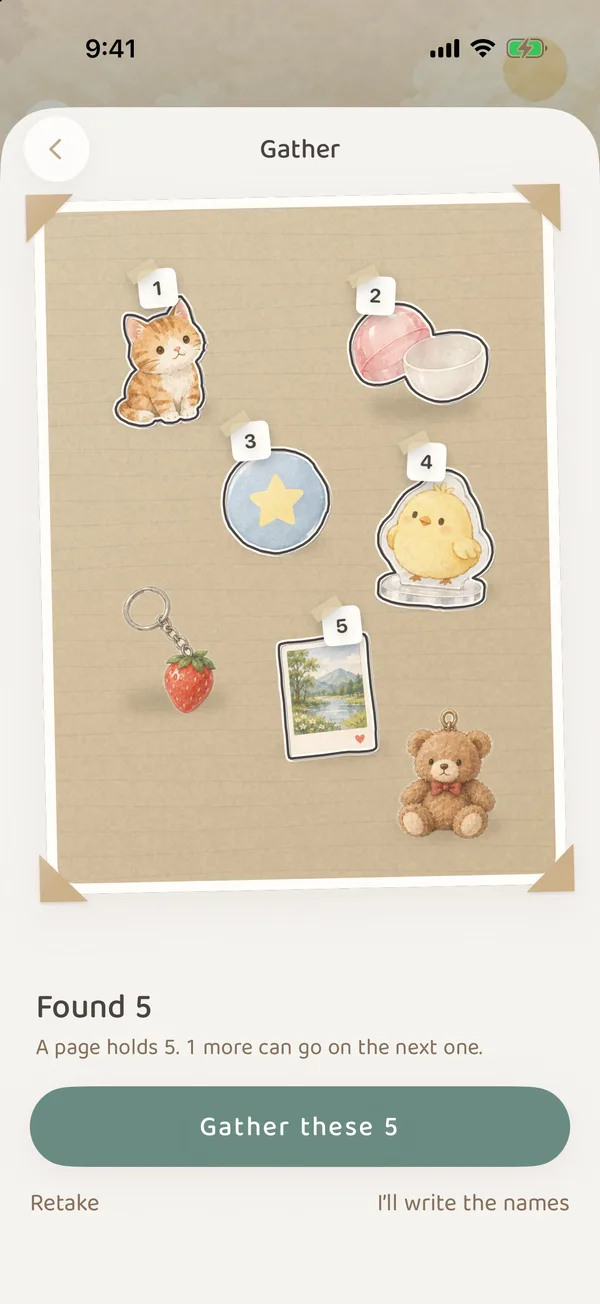
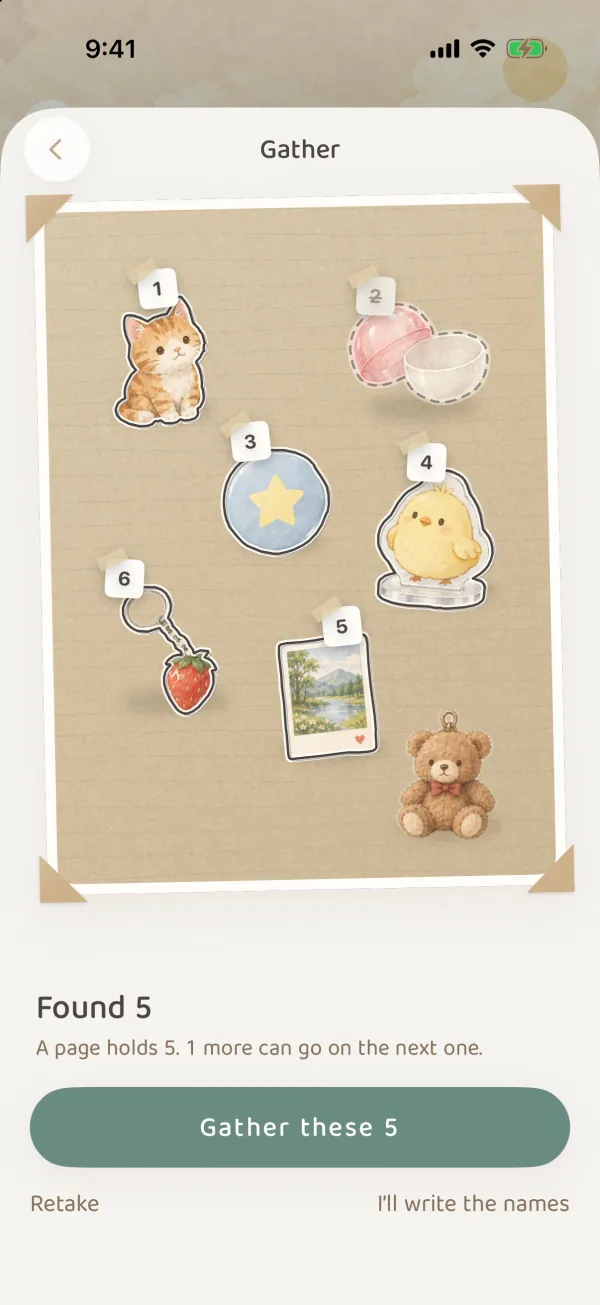
When you are happy, choose one of three buttons:
| Button | What happens |
|---|---|
| Gather these N | Cuts them out onto the gather page and asks AI to write the names in pencil. Below the button it says “Names can be written N more times this month” |
| I’ll write the names | Cuts them out the same way, but leaves the names blank for you. No internet needed, and it does not count toward your limit |
| Retake | Goes back to the camera to take a new photo |
Tracing and cutting out happen on your phone, with no internet and no use of your limit. Only writing the names needs the internet. For limits and what is sent, see “AI names: limits and privacy” below.
Step 3: Look over the gather page
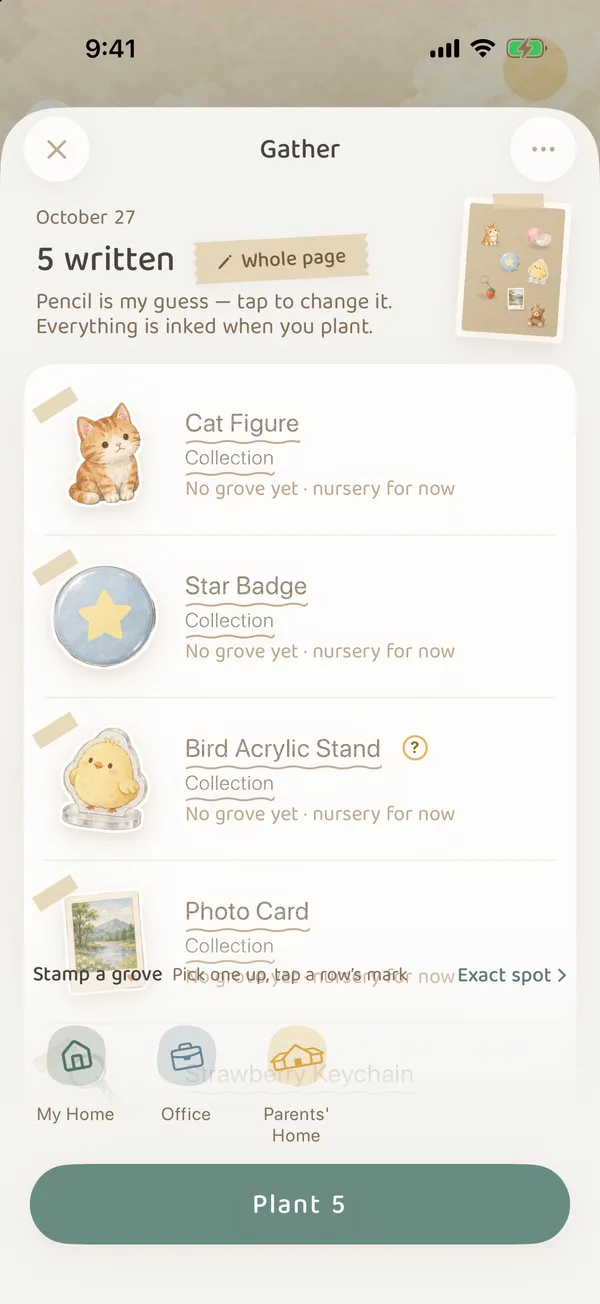
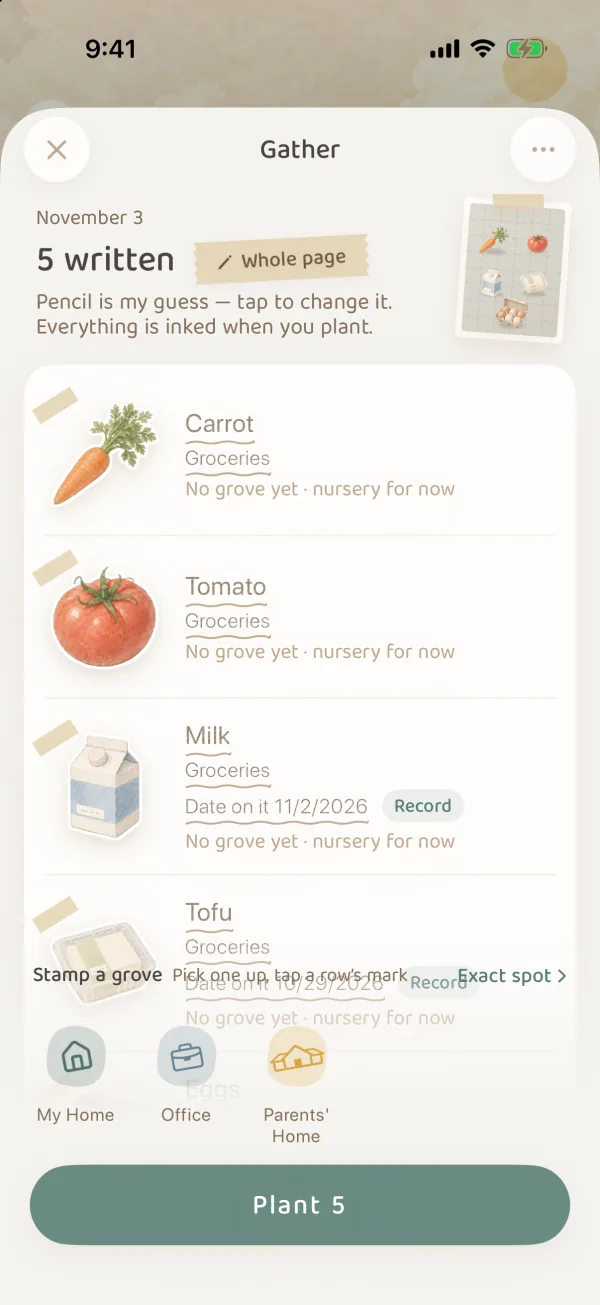
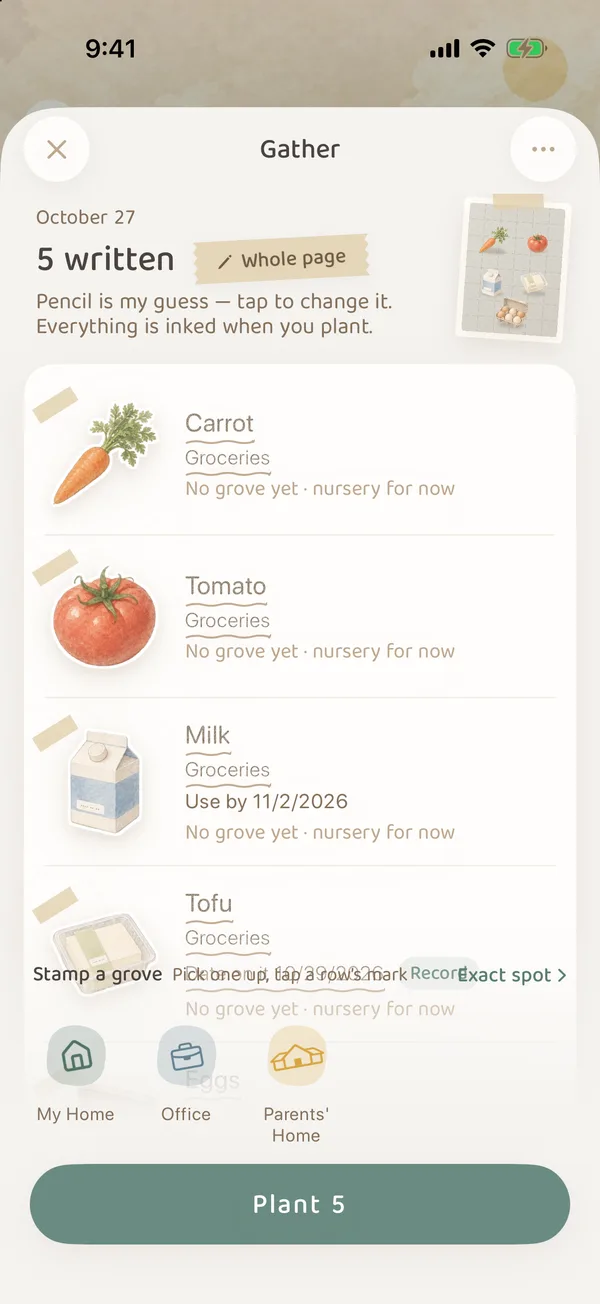
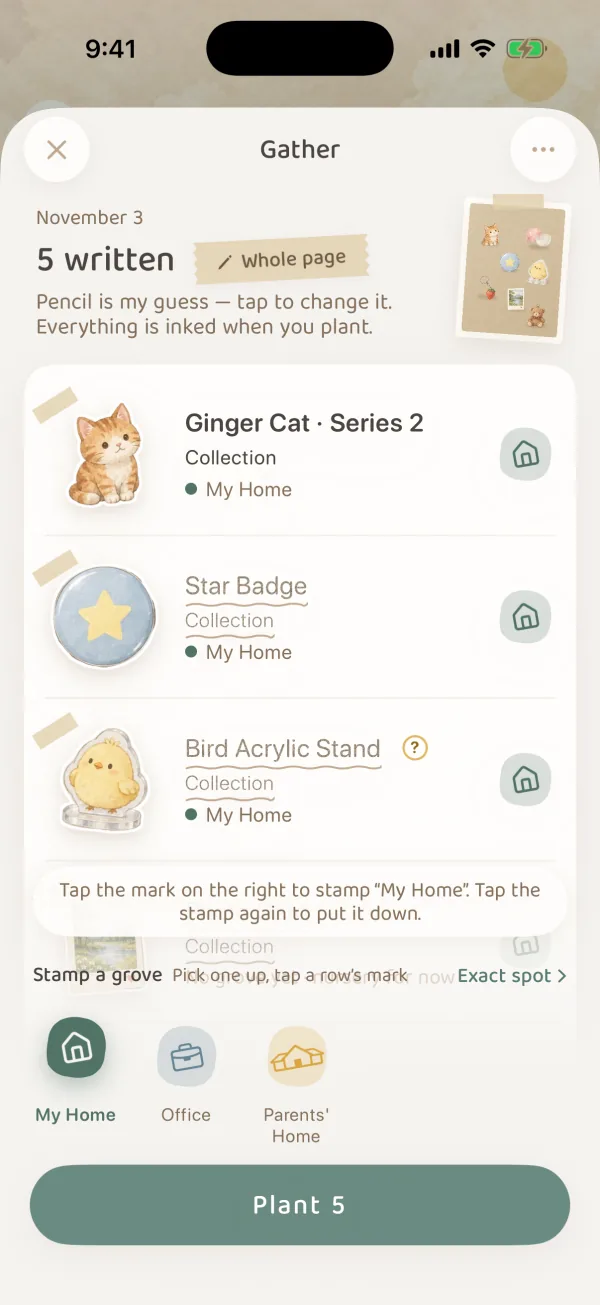
After gathering, each thing is cut out and pasted onto the gather page, with today’s date at the top. The names come in one by one (“Writing the names…”), and when they are done the title becomes “N written”.
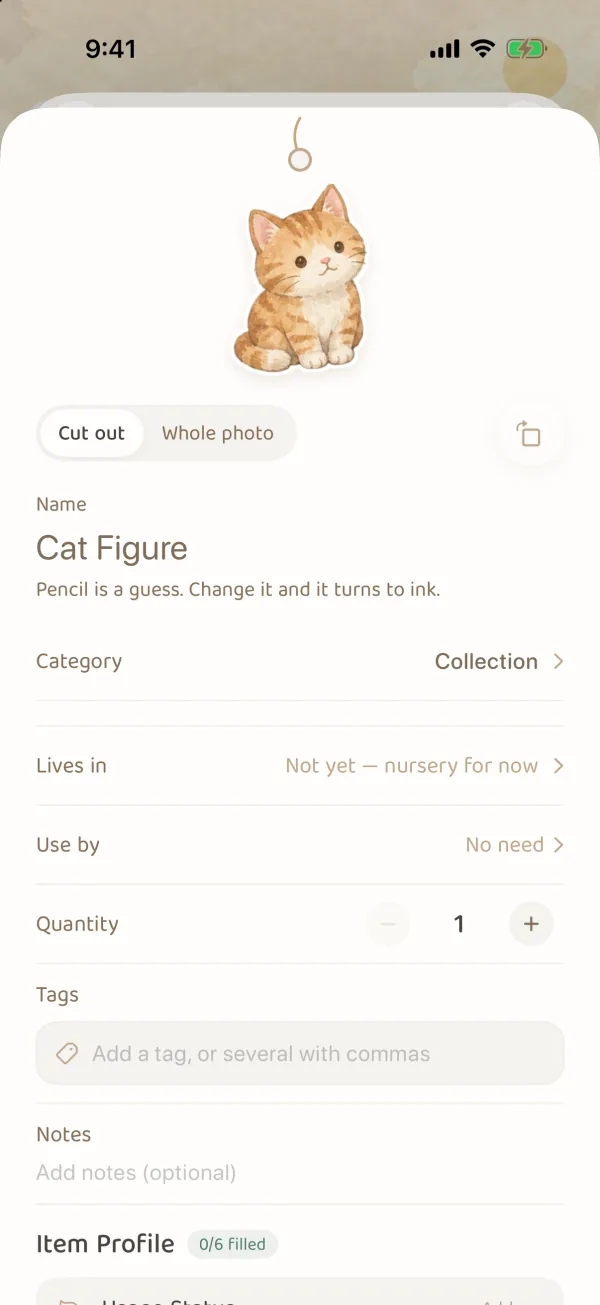
- Pencil is a guess: each row’s name and category are written in pencil first. Tap the row to change it, and what you change turns to ink. When you plant, the remaining pencil is inked too.
- Rows with a question mark mean “Not sure about this name”. Write the exact name so it is easier to find later.
- Couldn’t make this one out: AI did not recognize it. Just write its name.
- Use-by date: when a clear use-by date can be read off the packaging, the row shows “Date on it …” and Record. Only when you tap Record is it saved as the item’s expiry date. If you do not tap it, nothing is recorded.
The label: fixing things one at a time
Tap a row to open its label. You can fill in about as much as when you add an item normally:
| Field | What it is |
|---|---|
| Cut out / Whole photo | Use the cutout, or keep the original photo for this one. The button beside it rotates the image |
| Name | Required. Pencil turns to ink once you change it |
| Category | Required. AI chooses from your own categories. If it did not choose one, it says Choose one. (When you add items one by one in A New Sprout, the category is optional; with Gather it is required.) |
| Lives in | The grove and place. Left empty, it is Not yet — nursery for now |
| Use by | No need by default. When a date was read off the packaging, you can choose Read off it · Record. Once planted, it becomes the Expiry Date in Item Profile |
| Quantity, tags, notes | Fill in as you need |
| Item Profile | Usage status, purchase date, and this category’s attributes (such as brand, model, price and warranty) |
When you are done, tap Done. To leave one out, tap Not this one to take it off the page. Undo appears briefly at the bottom.
Stamping a grove
Stamp a grove at the bottom of the page lays out your groves (pinned ones first). To stamp:
- Tap a grove’s stamp to pick it up.
- Tap the mark at the right end of each row, and that thing is stamped with the grove. Tapping anywhere else on the row opens its label.
- When you are done, tap the stamp in your hand again to put it down.
- To put things in a specific place inside a grove, tap Exact spot, choose it, and stamp the same way.
- Groves that are not in the stamp tray are also found under Exact spot.
- Items you do not stamp are planted in the nursery first and show as Unassigned in Items. You can add a place on the item page later.
Write for the whole page
When the page is all the same kind of thing, tap the Whole page tape next to the title (or Write for the whole page… in the ··· menu at the top right). Fill in only what they share. Anything left blank stays as it is:
- Category, lives in: written onto each one. Keep Leave as is for anything you do not want to change.
- Tags: added to each one.
- Notes: replace each one’s note.
- Category attributes: when they all share a category, you can fill these in together. When their categories differ, choose one above, and you can write its attributes together too.
When you are sure, tap Write on all N.
Planting
Tap Plant N at the bottom. If some still lack a name or category, the button says “N still need a name or category” and opens that one’s label. When everything is filled in, the pencil is inked and each thing lands on the tree where it lives. Unstamped ones go to the nursery first.
One gather is one page. If you have more to record, plant this page, then open Gather again for the next one.
If the names do not come through
If AI does not write the names, everything cut out stays on the page, with the names left blank for you:
| Message | Why | What you can do |
|---|---|---|
| Not connected. The cutouts are all here | Writing names needs the internet | Write them yourself now, or tap Try again once you are online |
| The names didn’t come through. The cutouts are all here | The service had a temporary problem | Write them yourself, or tap Try again |
| This month’s names are used up. The cutouts are all here | You have used this month’s limit | Write them yourself, or tap Become a Forest Guardian |
Try again only fills in names that are still blank. Names you wrote yourself are never changed.
Leaving or retaking
- Retake this page: in the ··· menu at the top right. Everything cut out and written on this page is erased, and you go back to the camera.
- Close: if you close before planting, you see “This page isn’t planted yet”. Choose Leave without planting, and nothing cut out or written on this page is kept. Choose Keep gathering to go back to the page.
AI names: limits and privacy
What AI writes
- Names: in the Name language you chose. Brands and proper names are not always translated.
- Category: only one of your own categories. It never makes a new one.
- Tags and notes: sometimes it adds a few tags and a one-line note. Tags follow how you wrote your recent tags where it can.
- Use-by date: only when the packaging shows a best-before or use-by date down to the day does it suggest “Date on it …”. Dates with only a year and month are not suggested.
AI is only guessing, so check before you plant. Models and brands are easy to get wrong, so look at the ones with a question mark first. Make sure the date it read is the use-by date, not the date it was made. AI does not know where things are kept, so you stamp where they live yourself.
Monthly limits
| Plan | Names written per month |
|---|---|
| Free | 10 times |
| Plus | 10 times |
| Premium | 200 times |
- One page counts once, and only when names are actually written. If you were offline or the service failed, it does not count.
- Does not count: tracing, cutting out, and choosing I’ll write the names.
- How many are left: shown under the Gather these N button.
- When you run out: you can still gather. Everything is cut out and pasted as usual, and you write the names.
- Premium Lifetime (a one-time purchase): 200 a month is guaranteed for the first 2 years. After that, we will do our best to keep it free.
What is sent
When writing names, MononoMori sends these to the recognition service:
- Each cutout image (compressed), not the whole photo;
- Your category names, and up to 10 tags you used recently;
- The name language you chose.
Groves, places and other item records are never sent. When you choose I’ll write the names, nothing is sent at all.
Do not gather ID cards, bank cards, medical records or anything else you would not want the recognition service to process.
Continuous planting: one after another
When you are writing several things by hand without a photo (for example, the books on one shelf), use continuous planting. After you plant one, the form stays open for the next.
- At the bottom right of A New Sprout, to the left of Plant, is a round button with looping arrows. Tap it and it turns green, meaning it is on.
- The main button becomes Plant, then the next. Fill in the first item and tap it.
- The page stays open. The corner of the round button shows how many you have planted this round.
After each plant, the form treats the last item like this:
| Cleared | Kept |
|---|---|
| Name, Its Little Story, photos, attachments, batches, connected items | Category, where it is planted, quantity, tags, dates, usage status and category attributes |
What is kept may not fit the next item. Before each plant, at least check the name and Planted in.
After the last one, tap close at the top left to leave. Or turn off continuous planting with the round button before you plant the last one, and the page closes after planting. If the wooden sign still has unplanted content when you close, you see “This one isn’t planted yet”: tap Keep writing to go back to the form, or Leave without planting, and nothing written on the sign, and no photo, is kept.
FAQ
Where did Forest Eye or “Let the forest see it” go?
They were replaced by Gather. You find it on the Gather card under the wooden sign in A New Sprout.
How many things can one photo record?
Up to 5 per page. For more, plant this page and gather again.
Can I skip AI completely?
Yes. On the tracing page, tap I’ll write the names. Things are still cut out and pasted, with the names left blank for you. No internet, and it does not count toward your limit. You can also write a name straight on the wooden sign, or use continuous planting to write things one by one.
Related guides
- Add Your First Item
- Manage by Lots: for the same thing kept in several places.
- Forest Guardian Plans