Everyday Care
App Version v4.0.0Leaf Gathering and Expiry Letters
Items with an expiry date fall into Leaf Gathering like leaves as the date nears. Learn how to give items an expiry date, how to renew one, look again tomorrow or let it go, and how to set how often letters come, how far ahead and at what time in More › Expiry Reminder.
Updated on Nov 3, 2026 ~25 min read
On this page
Give an item an Expiry Date, and when that date gets close it drops into Leaf Gathering like a falling leaf. Open Leaf Gathering to deal with these items one at a time. On the days there is something to tell you, a little sparrow brings a notification, called an Expiry Letter. Everything for that day goes into one letter, so you get at most one a day.
This page covers three things: how to give items an expiry date, what you can do in Leaf Gathering, and when letters arrive and by what rules.
First, give items an expiry date
Leaf Gathering and expiry letters only look at an item’s Expiry Date.
- In A New Sprout when you add an item, or open an existing item and tap ··· › Edit at the top right.
- In Item Profile, tap the Expiry Date row and pick a date. You can also tap a shortcut such as “In 3 Months”.
- Tap Plant (for a new item) or Save (when editing).
If Item Profile has no Expiry Date row:
- First tap Show all N attributes under the card. It may just be folded away.
- If it is still missing, the item’s category does not record expiry dates. Uncategorized does not by default. Open More › Categories & Tags, tap the category to open Edit Category, turn on Expiry Date under Built-in Attributes, and tap Save. While adding an item, you can also tap Attributes at the bottom right of Item Profile to open the same page. Or move the item to a category that expires, such as Food.
For how to set up categories, see Categories & Custom Attributes.
What is in Leaf Gathering
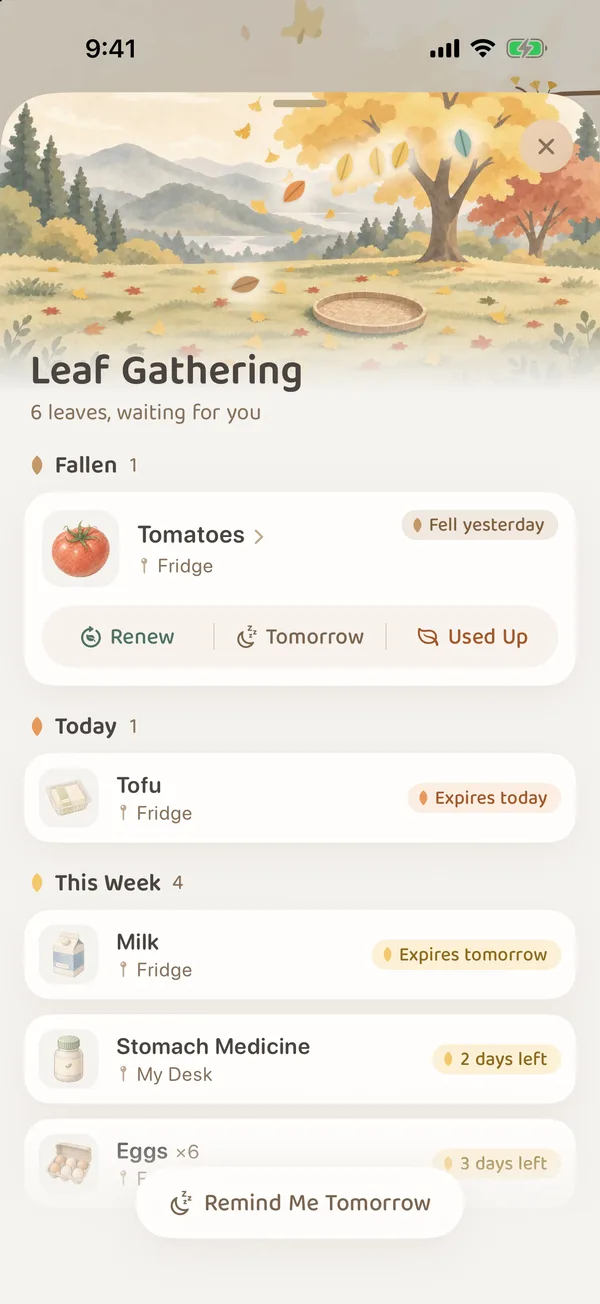
Leaf Gathering lists items that expire in the next 7 days, plus items that expired up to 30 days ago and have not been dealt with. They are split into three groups by time:
- Fallen: already past the expiry date.
- Today: expiring today.
- This Week: expiring in the next 7 days.
Ways to open it:
| From | How |
|---|---|
| Items | Tap the little pile of leaves to the left of the search bar. The badge counts the items that need care, and its color follows the most urgent leaf |
| Forest map | Switch to the Leaves lens and tap Go Gather Leaves › |
| Expiry letters | Tap the letter, or choose Open Leaf Gathering on it |
| Home Screen widget | Tap anywhere other than an item on the medium Falling Leaves widget |
Items more than 30 days past their expiry date that you have not dealt with leave Leaf Gathering and no longer send letters. They are still in your forest, and you can find them in Items by expiry date.
Looking after a leaf
Leaves open one at a time. An open leaf has three buttons:
-
Renew: you bought a new one, or it will keep a while longer. Choose In a Week, In a Month, In 3 Months or Pick a Date. One tap does it, with no extra confirmation. A renewed item goes back to the forest and falls again the next time it nears expiry.
-
Tomorrow: leave it for today. It is tucked out of the list and comes back with tomorrow’s letter.
-
Used Up: then asks Where should it go? with three choices:
- Used Up: into the Recycle Bin, with no keepsake. You can bring it back within 30 days. Choose this for finished milk or dead batteries.
- A Proper Farewell: opens the farewell page, where you choose how it left (such as Life Complete), write a few words and keep it in the Memory Forest as a memory. See Farewell and the Recycle Bin.
- Not Yet: does nothing and closes.
Note the difference: Used Up here sends the item to the Recycle Bin, while Life Complete on the farewell page is a way of leaving that keeps it in the Memory Forest.
If you do not want to deal with any of them today, tap Remind Me Tomorrow at the bottom. When every leaf is looked after, the page says Every leaf is tended and counts how many you renewed, used up, said farewell to and left for tomorrow this time.
What the list shows depends on the Expiry Date you filled in. Items with only a warranty period never fall into Leaf Gathering and never send letters.
When letters come
Letters are set up in More › Expiry Reminder. The default is When Needed: each item is written into a letter on these days:
- A little before it expires: how early is called the lead time, for example 1 day ahead for milk and 1 month ahead for face cream (see the next section).
- The day it expires.
- Day 3 after it expires, if it is still not gathered: this is said only once more.
- The day after you tapped Tomorrow.
Several items for the same day are merged into one letter, and never more than one a day. On a day you open Leaf Gathering, that day’s letter is not sent if it has not gone out yet, and letters already in Notification Center are cleared.
When there is only one item, the letter gives its name and where it is, such as “Milk due tomorrow · In Fridge”. When there are several, the most urgent come first, with a line such as “N more this week”.
On the Lock Screen, touch and hold a letter about one item to Renew…, Tomorrow or Used Up right there. On a letter about several items, you can Open Leaf Gathering or Remind Me Tomorrow.
What you can set in Expiry Reminder
In More, tap Expiry Reminder on the card at the top (there is a little owl beside it).
Letter time
Drag the sun or moon across the sky at the top of the page to change the time. The default is 9:00 AM. If you set a time after 6 PM or before 5 AM, a little owl delivers the letters instead. Under the sky you see the day of the next letter and how many letters will come in the next 7 days. Tap Send One Now to see what a letter looks like.
How often
| Option | When letters come |
|---|---|
| When Needed (default) | Only when leaves are expiring, about to expire or still not gathered, and at most once a day |
| Weekly | One letter on the day you pick, about what to watch this week. It still writes on the day something expires |
| Due Day Only | Only on the day things expire, never ahead |
Once More After It Expires works with all three options, and you can turn it off on its own.
How far ahead
By default, Decide by How Long It Lasts is on: the longer something keeps, the earlier the letter. For example, 1 day ahead for milk, 1 month for face cream, 3 months for a passport.
How it is worked out: take the time from the purchase date (or the day it was planted if there is none, or the day it was last renewed) to the expiry date, take about a tenth of that, and round to the nearest step: same day, 1 day, 3 days, 1 week, 2 weeks, 1 month or 3 months.
Turn this switch off, then tap the row of leaves below to choose one lead time for every item yourself. You can pick several steps at once.
To make an exception for one kind of thing, tap By Category and choose Follow Its Lifespan, a fixed lead time, or No Letters for that category. A setting on a single item wins over its category.
Setting one item on its own
Once an item has an expiry date on its edit page, a new row appears below it, saying which day the letter comes and how that was decided (by how long it lasts, by its category, or set for this item). Tap Change to:
- Choose a lead time for this item, Follow Its Lifespan, or No Letters (it still shows in Leaf Gathering when it expires).
- Choose Same for This Category to apply that lead time to its whole category.
Pausing, and what letters say
- Pause All Letters: choose Two Weeks, A Month or Until I Turn Them Back On. While paused, leaves still show in Leaf Gathering, and you can Resume Now at any time. Handy when you are away for a while.
- Item Names on the Lock Screen: when off, letters only say how many, not which ones.
- Notification Sound.
- Number on the App Icon: counts expired items plus those due today.
These settings follow your Apple Account: other iPhones and iPads signed in to the same Apple Account have the same settings, without turning on iCloud sync.
Letters for shared groves
This section only matters if you share a grove with family or friends. The person who shared the grove is its keeper; the people they invited are companions.
Items in groves you have joined or shared also send letters, merged into the same letter as your own forest. The Expiry Reminder page gets a Shared Groves section where you can turn them off one grove at a time. A grove turned off sends no letters, but its leaves still show in Leaf Gathering.
- Items in a shared grove cannot have their own lead time. They follow your own settings.
- If your role in that grove is Can view, you can only look at the leaves. There is no Renew or Used Up.
- Tapping Used Up in a shared grove: if you are the keeper, the item moves to that grove’s own Recently Deleted (not your Recycle Bin), where you can restore it later. If you are a companion, it asks the keeper to remove it. Items in a shared grove have no proper farewell.
For how shared groves work, see Shared Groves: Inviting Companions.
No notifications? No problem: expiring things still fall into Leaf Gathering, you just get no letters. When you want letters, go to Settings › Notifications › MononoMori and turn on Allow Notifications.
FAQ
Why does Leaf Gathering only show this week, but a letter came a month ahead?
Leaf Gathering only holds items expiring in the next 7 days and items already expired. Items with a longer lead time (such as face cream, 1 month ahead) get a letter first, then fall into Leaf Gathering once they reach their last week.
If several things are about to expire on the same day, will I get several letters?
No. Items for the same day go into the same letter, and never more than one a day.
If I change an expiry date, do the letters change too?
Yes. Whenever an item, a category or a setting changes, the coming letters are rescheduled.
Is the Falling Leaves widget the same as Leaf Gathering?
They read the same records: renew something or leave it for tomorrow in Leaf Gathering, and the widget follows. For how to use the widget, see Home Screen Widgets.