Groves & Forest Map
Updated for v4.1.0Groves, Places & Items
How groves, places and items fit together; how to walk into places level by level from My Forest and a grove page, and search inside a grove or place; and how to choose a spot in Where It Goes when you add or move an item.
Updated on Nov 15, 2026 ~27 min read
On this page
MononoMori records where things are in three levels: groves, places and items. This page explains what they are, how to browse them level by level, and how to choose a spot when you add or move an item.
Three levels
- Grove: a large area, such as “My Home”, “Office” or “Parents’ House”.
- Place: a specific spot inside a grove where things are kept, such as a closet, a drawer or a storage box. Places can hold more places.
- Item: a thing you want to record and find later.
A typical path is “My Home › Study › Desk Drawer › Adapter”. On the Forest Map, each grove is a plot of land and each top-level place is a tree.
A few suggestions:
- One grove is enough to start, such as “My Home”. Once you are used to it, decide whether to split it into several. Groves can also be by purpose, such as “Camping Gear”.
- Only make places for spots you would look in on their own. If you can see everything in a drawer at a glance, there is no need to split it further.
- Use names you can picture: “Bookcase, bottom shelf” is easier to find than “Place 1”.
- A place only answers “where”. Use a category for what kind of thing it is, a tag for what theme it belongs to, and usage status for whether you are using it now. Do not put all of that into the place name.
The free plan allows up to 3 groves and 10 places in total. See Forest Guardian Plans.
Groves in My Forest
Tap Forest at the bottom to open My Forest. Each grove is a card:
- At the top left are the grove’s seal and name, with how many places and items it has underneath. When something is about to expire, it also shows how many leaves are falling.
- Top-level places are written on a string of small place tags. Any that do not fit show as “N more”. Tap a place tag to walk straight into that place.
- A grove with a photo has a small photo clipped to its card. A pinned grove has a strip of washi tape on its corner.
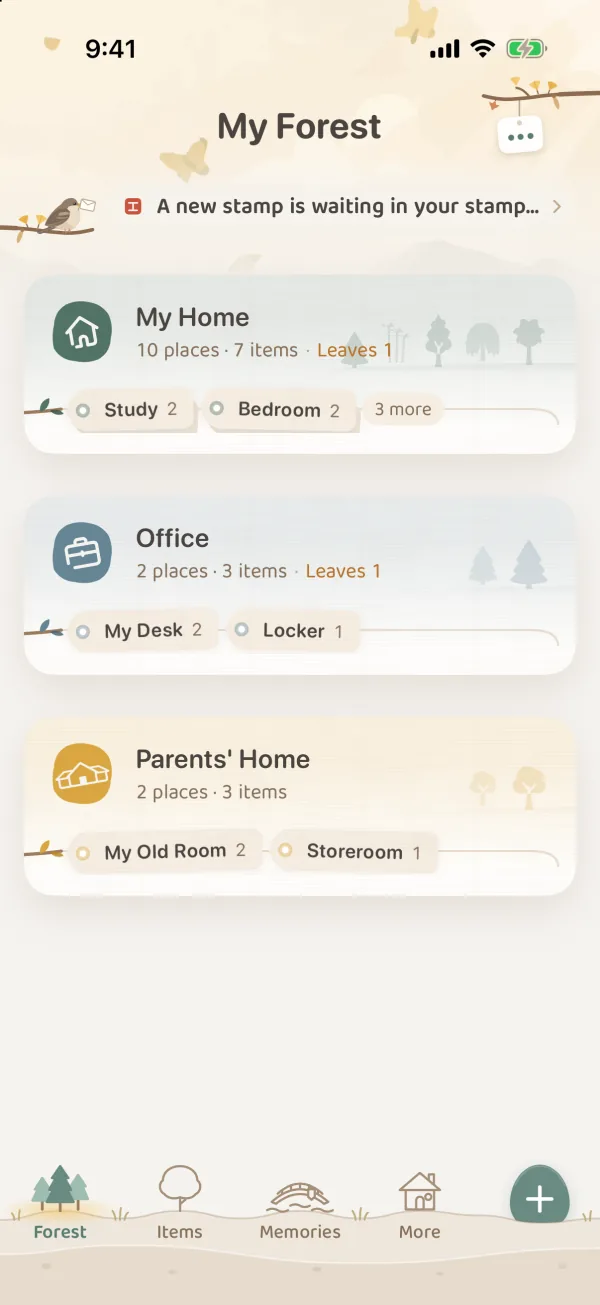
Tap a card to open that grove. Touch and hold a card to Pin, Edit Grove, View Details, Share This Grove…, Merge Into… or Delete Grove.
In the ··· menu at the top right, Display Mode has three options:
| Display mode | Good for |
|---|---|
| Cards | Everyday browsing, with an overview of each grove |
| All Places | Like a book’s table of contents, listing every place in every grove with its item count |
| Stamps | Each grove is an arched stamp: a grove with a photo shows the photo, and one without shows the last few things put in it |
The same menu also has Walk into the Forest (opens the forest map), Create Grove, Create Shared Grove, Share an Existing Grove… and Reorder.
Walk into a grove, level by level
- In My Forest, tap a grove card.
- At the top of the grove page are the grove’s photo (if it has one), seal and name. Below is a row of trees: these are the places on this level. Each tree has its name and item count beneath it. A tree with a small shrub at its foot has more places inside.
- Tap a tree to walk into that place. If it has places inside, another row of trees grows.
- Inside a place, the top shows the grove and the places above it. Tap any of them to go back to that level.
- Below the trees are the items here. Switch between With places inside (including things in every place inside) and Only here.
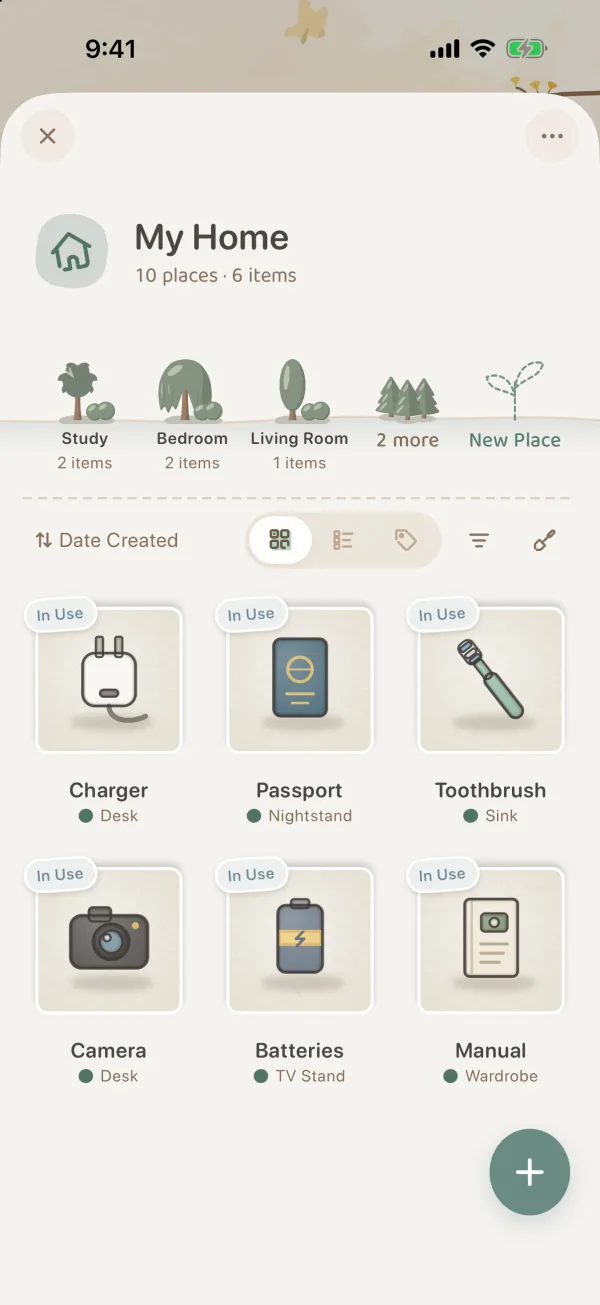
- Places that do not fit in the row gather into a small clump labeled “N more”. Tap it to list every place on this level, where you can walk into any of them or change their order.
- At the end of the row is a dashed seedling. Tap it to open a New Place on this level.
Touch and hold a tree to Go In, Put Something Here (add an item right in this place), New Place Inside, Reorder, Edit Location, Move Location or Delete.
Search a Grove
When you remember roughly which grove or room something is in, but not exactly where, search right there:
- Open a grove, or walk into a place inside it.
- Tap the magnifier to the left of ··· at the top, and type a name, tag, note or place name.
- It looks here and in every place inside, whether With places inside or Only here is chosen below.
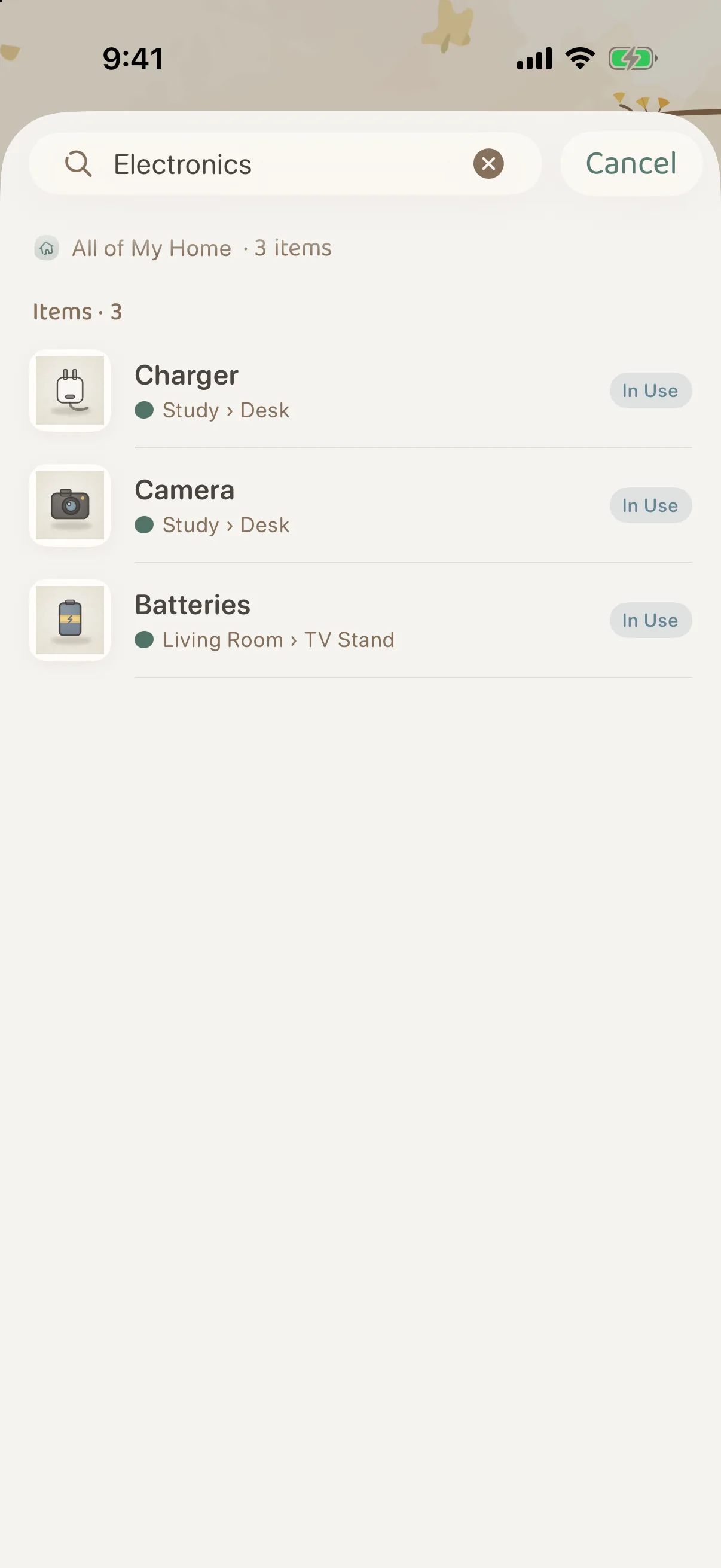
- Places whose names match come first. Tap one to walk in.
- Each item takes one row, with its path from here, such as “Study › Desk”.
- Any filters already on the page stay on, and the search shows “Filters still on: N”.
- When you search inside a place and there are more elsewhere in the grove, a small slip says “N more elsewhere in” the grove. Tap Show to widen the search to the whole grove without retyping it.
- When nothing here matches, it “Looked a little further:” and lists matches elsewhere in this grove and in other groves.
- Shared groves can be searched too, and the search stays inside that shared grove.
Close the search, and the page goes back to how it was.
When you do not know which level it is on
In the ··· menu at the top right of My Forest, switch Display Mode to All Places. Each grove becomes a heading, with each level indented one step below it, listing every place and its item count. Type a name into the place search box, and only matching places stay, each showing where it is. Even several places called “Drawer” are easy to tell apart.
If you only remember an item’s name or a tag and not which grove it is in, search in Items, or use the magnifying glass on the forest map to Find in the Forest.
Choose a tree for a grove or place
When you create or edit a grove or place, you can fill in:
- Name: such as “My Home”, “Top Shelf” or “Drawer”.
- Its Tree: Round Tree, Pine, Bamboo, Willow, Ginkgo, Poplar, Cypress or Shrub, eight in all. On the map you can tell which place is which from far away.
- Seal: shown in paths, on tags and next to the name.
- Ink: the color the seal is stamped in. A grove’s ink is also the color of its tree.
- Photo: optional. If you add one, it shows at the top of its page.
- Where (places only): which grove and which place it sits in. Choose straight in the grove to make it a top-level place.
A grove also has This Grove’s Tree: places without a tree of their own grow this one. When a place is set to Like Its Grove, it matches the grove.
When you add an item: Where It Goes
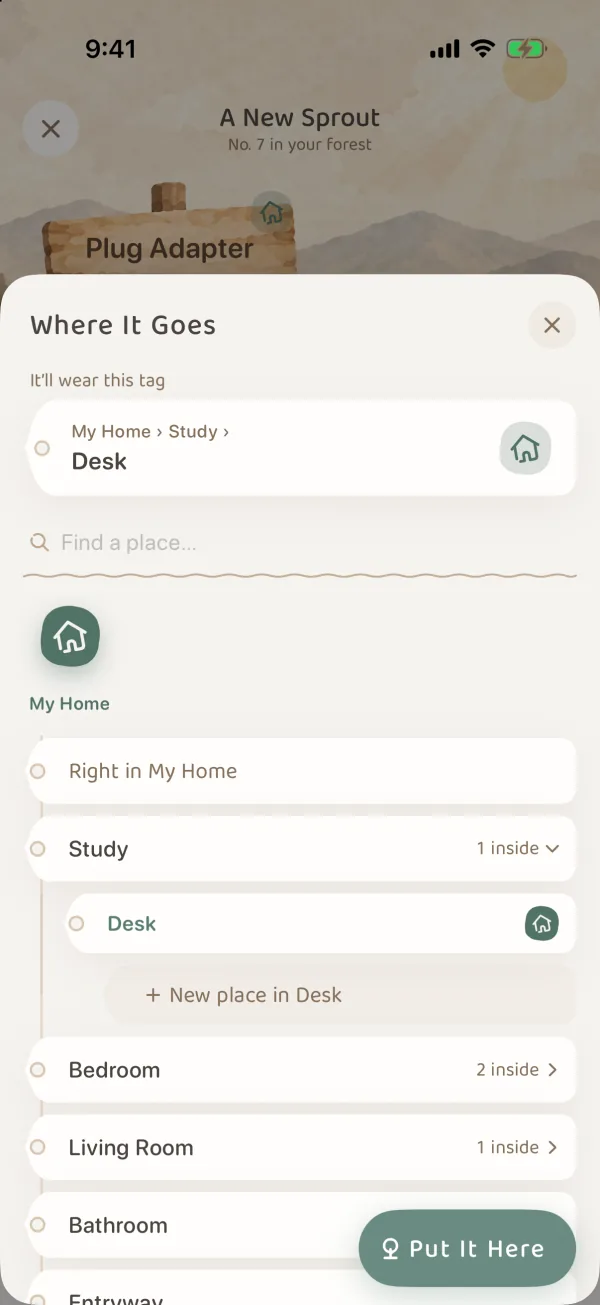
In A New Sprout, tap the row labeled Planted in to open Where It Goes:
- Along the top is a row of grove seals. Tap one, and that grove’s places hang as a string of place tags.
- A place tag with places inside opens up right where it is, so you do not have to tap through page after page.
- Tap a place tag to select it. At the very top, “It’ll wear this tag” previews the full path.
- To put it right on one level without choosing further, tap Right in [place].
- Tap Put It Here at the bottom right.
A few shortcuts:
- Suggestions: a few suggestions are listed under the seals. Those marked “Usually here” are where things of the same category are most often kept (they appear only once at least two items are kept there). Those with a clock icon are places you used recently.
- Find a place…: type a name to search across groves, with full paths in the results. If nothing matches, you can open a new place with that name somewhere right then.
- New place: at the end of every level is “New place in [place]”. Give it a name and it is created.
When you add an item from inside a grove or place, Planted in starts out filled with it. You can also leave the place for later: only the name is required when you add an item, and an item with no place is planted in the Nursery for now, to be filled in later.
When you move an item or a place
Moving opens the same picker, just with different wording:
| What you are doing | Title and button |
|---|---|
| Moving an item or a place | ”Choose a destination”, with a Move Here button |
| Merging groves | Only grove seals are shown, with a Merge Into It button |
When you move a place, it and the places inside it are grayed out and cannot be chosen. The places and items inside move along with it. Before you confirm, check the full path in the preview, especially which grove a similarly named place belongs to.
When things move, or a place goes away
- One item moved: open its item page, tap ··· › Edit at the top right, change its place and save.
- Several items moved together: in Items, tap the small trowel in the tool row (multi-select), tap them, then tap Transplant in the tidy-up tools at the bottom.
- A whole place moved to another grove, with everything in it: touch and hold its tree and choose Move Location. Or, in Arranging on the forest map, touch and hold the tree, drag it into another grove and confirm Move It.
If you only want it to be easier to find under another theme, use a tag instead of moving it. Dragging a grove on the forest map only changes where it sits on the map; it does not move anything.
Deleting a place also deletes the places and all the items inside it. Deleting a grove deletes all its places and items. If you only want to combine them, use Merge Into…, or move the items out before you delete.
Common questions
Should groves be by room or by purpose?
Either works. If finding things by location feels natural, make them by room or home. If you keep one kind of thing separately for the long term, such as camping gear, it can have its own grove, with its backpacks and boxes as places. What matters is that you can reliably pick the same path when adding and finding things.
Where does an item go if I do not choose a place?
It is planted in the Nursery for now and shows as “Unassigned” in Items. Edit its place on the item page later.
Why does an item’s location tag show only the grove name and no path?
When an item is kept straight in the grove with no specific place, the location tag on its item page shows only the grove’s name.
Related guides
- Plant Your First Grove
- Add Your First Item
- Forest Map
- Item Pages
- Manage by Lots: for when the same kind of thing is kept in several spots.