Recording Items
NEW · Added in v4.1.0Item Pages: Location Tag, Tree Rings & Zen Browsing
Get to know the item page: a washi location tag says where it lives, Item Profile can be filled in row by row, and the tree rings record your days together. Swipe sideways to look through items one after another.
Updated on Nov 15, 2026 ~17 min read
On this page
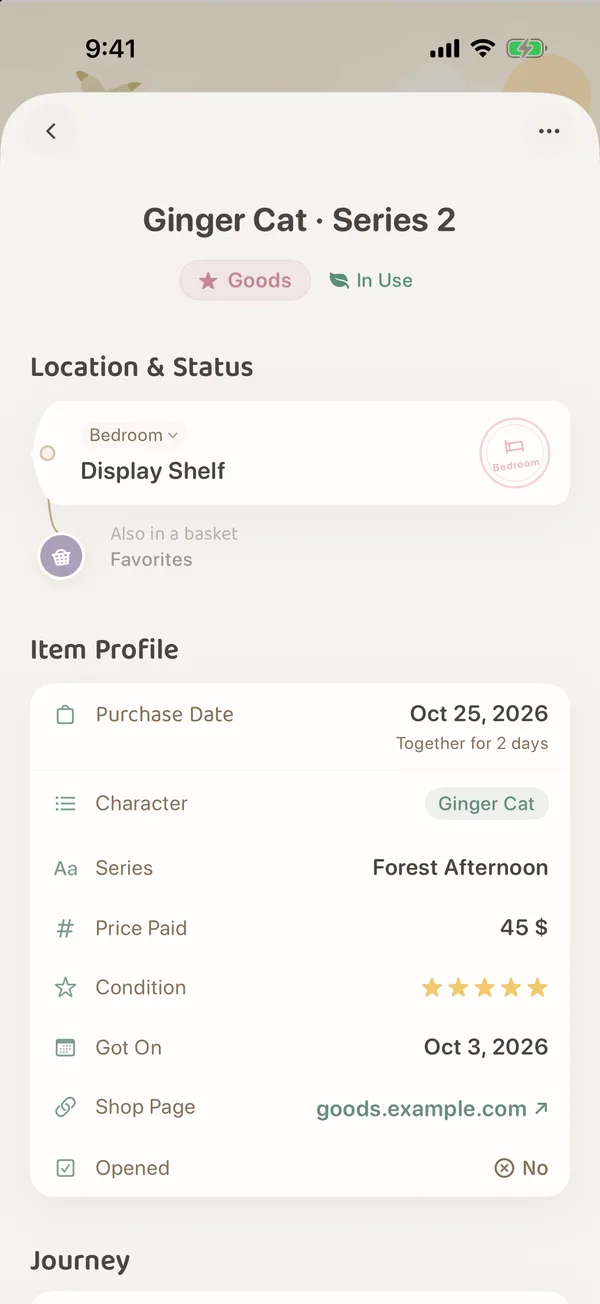
Tap an item in Items, in Forest or in search results to open its item page. The name is at the top, then a washi location tag showing where it is, then Item Profile and its tree rings.
The page from top to bottom
| Section | What it shows |
|---|---|
| Name | The item’s name, with its category and usage status on the line below. |
| Location & Status | A washi location tag: which grove and place it lives in, and which baskets it is in. |
| Item Profile | Purchase date, expiry date, price, and the category’s custom attributes. |
| Connected Items | Items connected to it (only when there are some). |
| Journey | The tree rings: how many days together, check-ins and notes. |
| Its Little Story | The note you wrote. |
| Treasure Box | Attachment photos such as manuals and warranty cards (only when there are some). |
| Footer | When it was created and last modified. |
Anything you have not filled in takes up no space. For example, an item with no connections has no Connected Items section.
The location tag: where it lives
Under Location & Status hangs a washi tape label, the location tag (not the same as the tags you add to items):
- The small line on top is the path, such as “Bedroom”;
- The large line below is the place it is in, such as “Display Cabinet”;
- On the right is a grove seal with the grove’s name.
Tap a level of the path (such as “Bedroom”), and a small card unfolds under the location tag listing what else is on that level. Tap the card to open everything there. It is the quickest way to see what else is in the same drawer.
If the item is in a basket, a small round basket charm hangs under the location tag. Tap it to open that basket.
When an item is split into batches kept in different places, there is not one location tag here but a string of small ones, each saying how many are kept there. For how to split an item, see Manage by Lots.
Item Profile: tap whichever row is empty
Item Profile lays out the item’s details on one card. The built-in attributes turned on in the category settings (such as purchase date and price) and its custom attributes are all listed here.
- Tap any row to change that detail directly, without opening the full edit page.
- When attributes are still empty, the card shows “N to fill in”. Tap it to start from the first empty attribute.
- Under the purchase date, it shows how long you have been together (“Together for …”).
- Under the expiry date, it shows the day the first expiry letter will come (unless letters are paused).
- If there is no Expiry Date row, the category has not turned it on. See “First, give items an expiry date” in Leaf Gathering and Expiry Letters.
- When there are many rows, “N more” appears below. Tap it to see them all.
The item’s category decides which attributes appear here. To add or remove attributes, see Categories & Custom Attributes.
Tree rings: your days together
Journey, further down the page, draws the time the item has kept you company as rings, like the rings of a tree:
- In the first year a ring grows each month, then one a year after that;
- The outermost ring, still growing, is a green arc;
- Check-ins, notes and moves are colored dots on the rings.
The rings count from the purchase date. Without one, they count from the day the record was created. Beside them it says “N days together”, and how the item is doing now:
| Shows | When |
|---|---|
| Thriving | The usual state. |
| Dormant | No check-in for more than 60 days (if it never had one, counted from the day the record was created). This is only how the rings describe it and has nothing to do with hibernation. The item shows as usual. |
| Farewell Soon | The expiry date is within 7 days. Only a reminder that it is about to expire. The item is never said farewell to automatically. |
Under the rings are two buttons:
- Check In: you used it today. Tap to record it once.
- Note: write a few words about it.
Tap the rings themselves to open Full Chronicle and look back over all the item’s records in time order. The top shows your days together and how many times you checked in. If it has a price, it also shows the average cost per use (the price divided by the number of check-ins).
Zen browsing: one item after another
Once an item is open, there is no need to go back to the list:
- Swipe left or right to move to the next or previous item in the list;
- Swipe down to close the item page and go back to the list.
The order follows the list you opened it from. Sort or filter a set in Items first, then open the first one and swipe sideways, and you can page through them like a field guide.
The ··· menu at the top right
| Action | What it does |
|---|---|
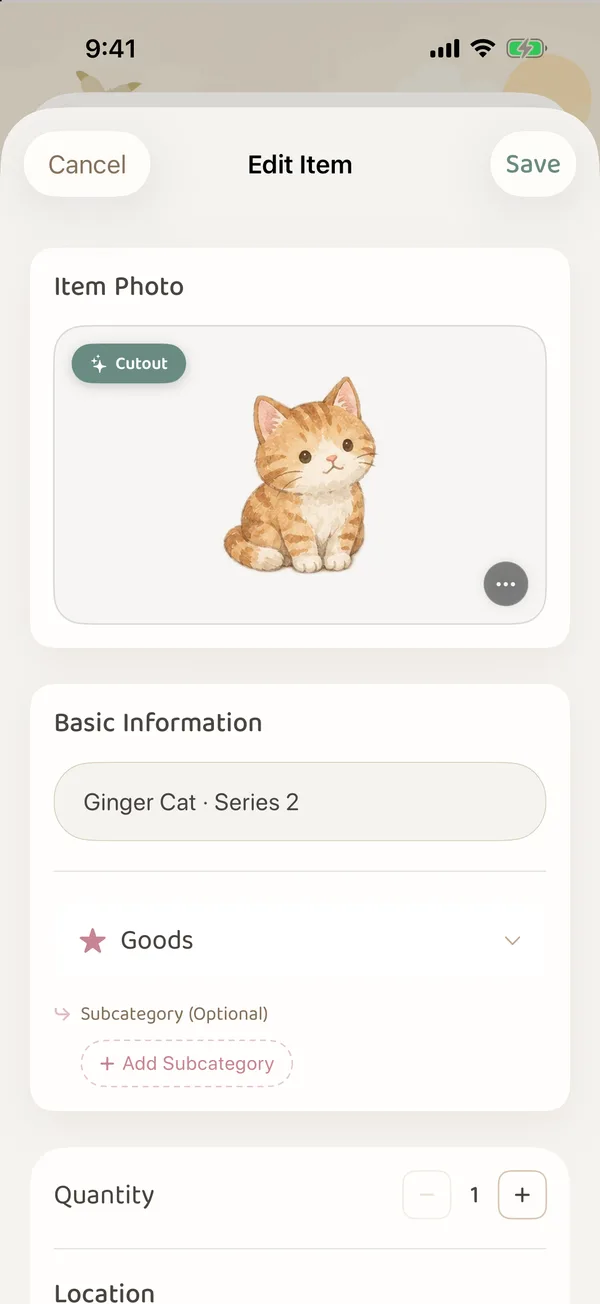
| Edit | Opens the full edit page to change photos, name, category, quantity, place and more. |
| Link Item | Connects it to another item. See Item & Basket Connections. |
| Hibernate / Wake Up | Tucks it away from everyday browsing for now, or wakes it up again. See Item Hibernation. |
| Share | Opens the Forest Press to print this item as a Specimen, Postcard, Receipt and more. See Forest Press. |
| Farewell | Lets it leave the forest: kept in the Memory Forest, or moved to the Recycle Bin. See Farewell and the Recycle Bin. |
There is no separate Delete here. To delete an item you recorded by mistake, choose Farewell, then tap Move to Recycle Bin · back within 30 days. There is no need to choose how it leaves.
A hibernating item shows “Item is Hibernating” at the top of its page.
This only applies to shared groves: if your role in that grove is Can view, you can look at item pages but not check in or make changes. The edit button shows a small lock.
FAQ
The location tag has no path, just one name?
When an item sits directly in a grove with no specific place, the location tag shows only the grove’s name. Edit the item, choose a place and save.
The number of days in the rings is wrong?
The rings count from the purchase date. Check that the purchase date in Item Profile is right. Without one, they count from the day the record was created.
Swiping sideways does nothing?
You can only swipe between items when you opened the item from a list that has more than one item. An item opened on its own from the forest map or a basket may be alone in its list.