Everyday Care
App Version v4.0.0Item & Basket Connections
Connect items that go together (a camera and its lenses, a tent and its pegs) and baskets that belong together (a business trip and its souvenirs), so opening one shows you the other; you can disconnect them at any time.
Updated on Nov 3, 2026 ~16 min read
On this page
Some things are always used together: a camera and its lenses, a tent and its pegs, a pour-over kettle and its filters. Connected Items links items like these, so when you open one, you see the others that go with it and where each is kept. Connected Baskets links two baskets in the same way, such as “Business Trip” and “Osaka Souvenirs”.
Connecting things does not move anything: each item still lives in its own place, and what is in each basket stays the same.
Connected Items
Connections go both ways: link a lens to the camera, and opening the lens shows the camera too.
Link items
There are three places to start:
| From | How |
|---|---|
| The item page | Tap ··· at the top right and choose Link Item. Use this when the item has no connections yet |
| The Connected Items card on the item page | When it already has connections, tap + at the top right of the card to add more |
| While adding an item | Tap Connected Items next to the Treasure Box (it reads “Accessories, chargers, cases”), pick the items to link first, and they are connected when you plant it |
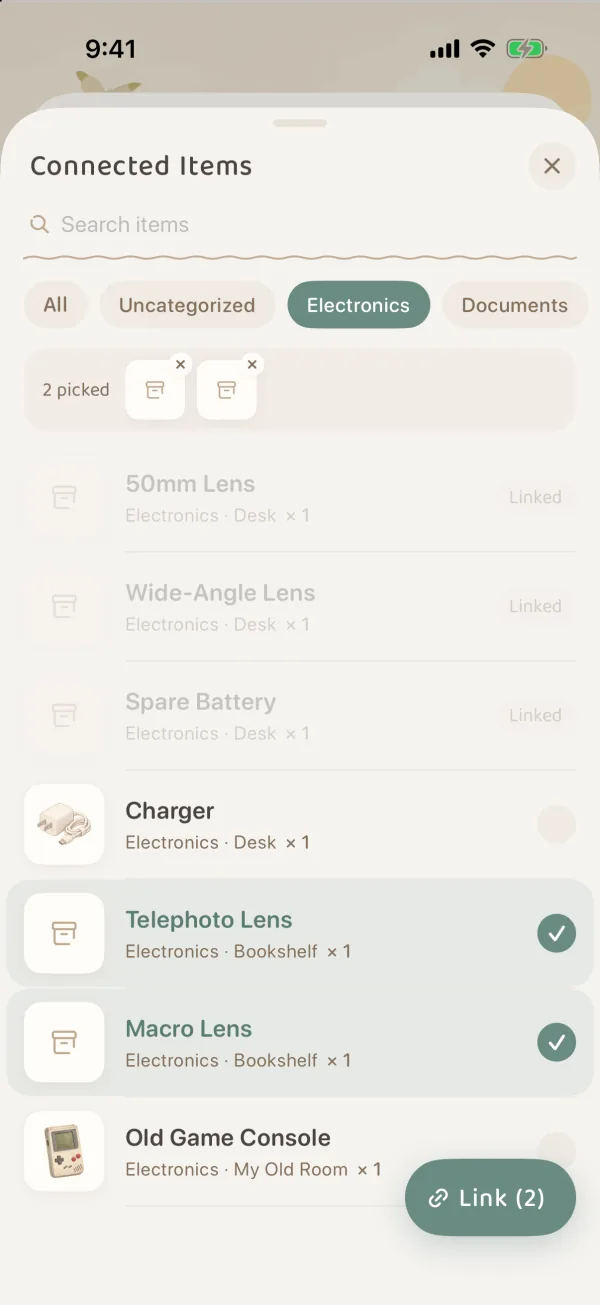
This opens the Connected Items picker:
- Type a name in Search items, or tap a category chip below (All or a category) to narrow things down.
- Tap items to tick them. You can tick several at once. Items already connected are marked “Linked”.
- Tap Link (N) at the bottom right.
See connected items on the item page
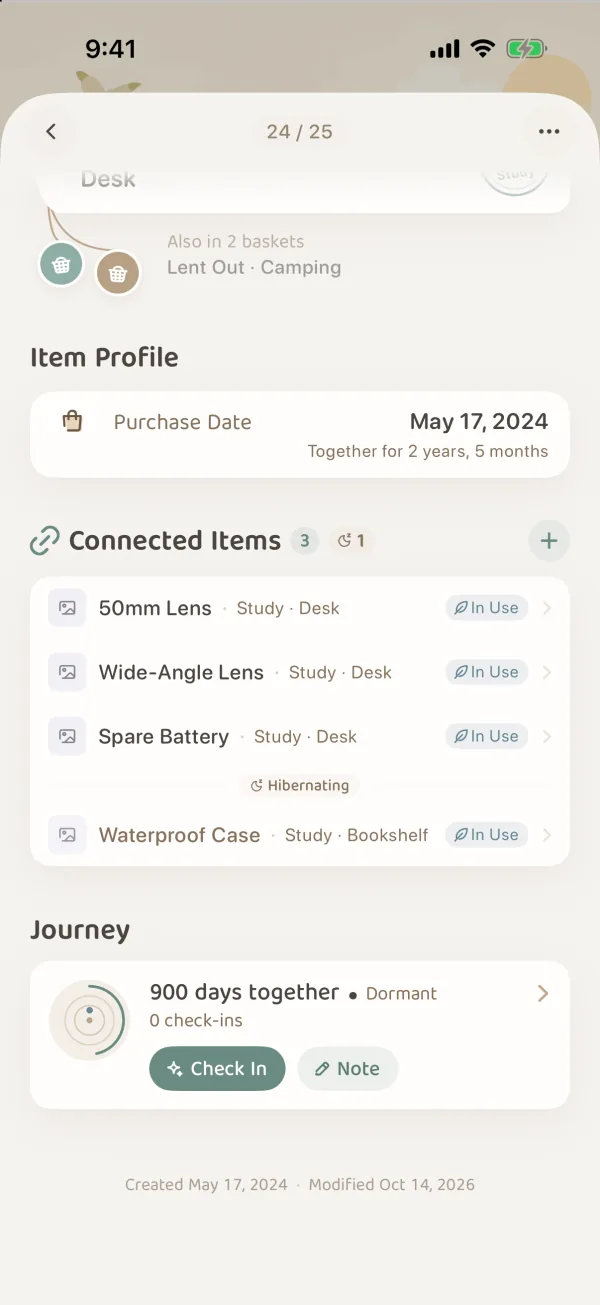
Once items are linked, a Connected Items card appears on the item page. Items with no connections do not show this card.
- Each row shows the item’s name and where it is kept (or its category if it has no place). Tap a row to open that item.
- Each row carries one mark on the right: the first one with content, in the order you set in Items › Arrange › What Cards Show. To see at a glance whether an accessory is “Low Stock”, move usage status up the order.
- Hibernating items are listed below a “Hibernating” divider, and the number of hibernating items is shown next to the title.
- With more than 4 items the list folds. Tap Show N More to expand it and Show Less to fold it again.
Disconnect
On the Connected Items card, touch and hold a row and choose Disconnect. This only removes the link between the two items; neither item is affected.
When you touch and hold a hibernating item, the menu also has Wake Up, so you can wake it without opening it.
Hibernating items do not appear in the picker. To link a hibernating item, wake it first, or open its own item page and use ··· › Link Item to link it to other items. See Item Hibernation.
Connections in shared groves
Items in a shared grove can be linked too, but only to items in the same grove.
- You can add up to 20 connected items at a time.
- When you plant a new item straight into a shared grove, the add page has no Connected Items. Link it from the item page after planting.
- When you move one of your own items into a shared grove, its existing connections are removed.
For how shared groves work, see Shared Groves: Inviting Companions.
Connected Baskets
Connected Baskets links two baskets. It suits times when one occasion needs several baskets, such as “Business Trip” and “Osaka Souvenirs”, or “Camping” and “Cookout”.
Connect baskets
- Open a basket, tap ··· at the top right and choose Connect Baskets. You can also tap Add Connected Baskets under Connected Baskets when making a basket or in Edit Properties (it reads Edit Connected Baskets once the basket has connections).
- Search in Search Baskets and tap baskets to tick them. Selected baskets move to the top; tap the cross next to one to remove it.
- Tap Connect (N) at the bottom right.
A basket can be connected to up to 100 other baskets.
See connected baskets in a basket
Connected baskets hang from a thin string under the basket’s name, labeled with Connected Baskets and their count. Tap one to jump to that basket; touch and hold it and choose Disconnect to remove it.
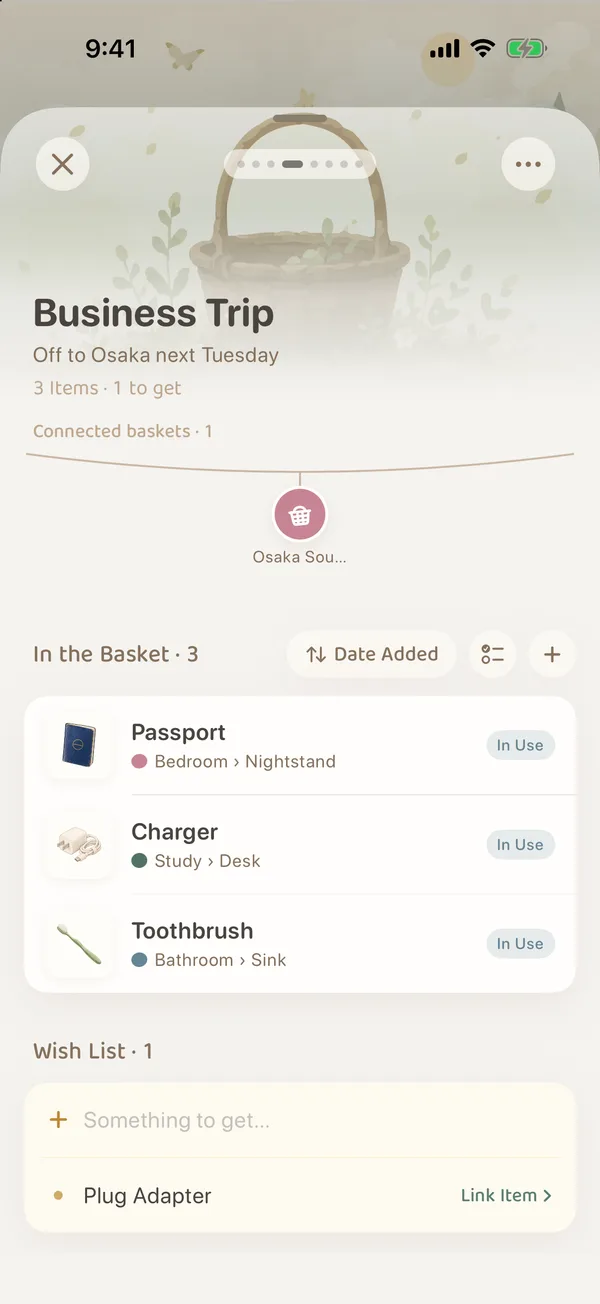
For how to use baskets themselves, see Baskets and Packing Along the Path.
Connect them, or put them in one basket?
| What you want to do | What to use |
|---|---|
| Two things that always go together, so opening one should show the other (camera and lens, printer and ink cartridges) | Connected Items |
| A set of things for one occasion that you pack before going out (business trip, camping, emergency pack) | A basket |
| One occasion prepared in several baskets (checked luggage and carry-on) | Connected Baskets |
Common questions
If I disconnect or delete one item, does it affect the other?
No. Disconnecting only removes the link between the two. If one of them is said farewell to or deleted, the other’s details, photos and place stay the same.
Do connected items have to be kept in the same place?
No. Connected items can be in different groves and places, and the Connected Items card shows where each one is.
Does connecting baskets combine their contents?
No. Each basket keeps its own items, checklist and Wish List. Connecting them only lets you jump quickly from one basket to the other.