Finding Things in Items
Updated for v4.1.0Items: Filter, Arrange & Marks
Items lays every item out on one page: find things with search and the category tabs, pick out what to see with Filter, switch between the Specimens, Index and Luggage Tags views, choose the order, grouping and what cards show in Arrange, and handle many items at once with the tidy-up tools.
Updated on Nov 15, 2026 ~28 min read
On this page
Items lays every item in your forest out on one page, so you do not have to open groves level by level first. The page is like a field guide: items are pressed like specimens, categories are tabs, and each button in the tool row does just one thing. Changing the view, order or filters only changes how you see things; it never changes any item.
To look up one thing, just type in the search bar at the top. Filter is something else: it narrows the whole list by conditions such as grove, category and state.
Before 4.1, Filter was called Find. Only the name changed; it works the same way.
If you know roughly which grove or place something is in, you can also search right there. See “Search a Grove” in Groves, Places & Items.
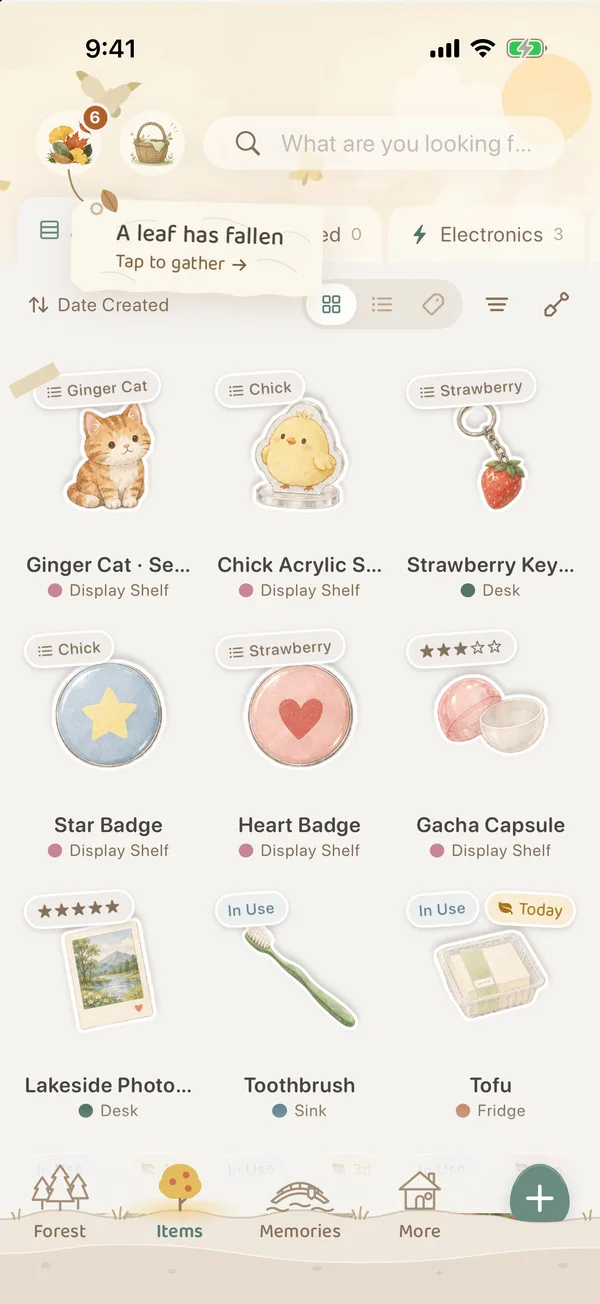
What is on the page
| Where | What it is | What tapping does |
|---|---|---|
| The leaf at the top left | Leaf Gathering | Opens Leaf Gathering. The number is how many leaves still need care. |
| The basket next to the leaf | Baskets | Opens your Baskets. |
| The search bar, “What are you looking for?” | Search | Type to find items. |
| A row of paper tabs | Category tabs | All and each category, with item counts. |
| The left of the tool row, such as “Date Created” | Arrange | Order, grouping and what cards show. |
| Three small icons on the right of the tool row | Views | Specimens, Index, Luggage Tags. |
| The round button with three lines | Filter | Pick conditions to keep only the items you want to see. |
| The small trowel | Multi-select | Pick up several items and tidy them at once. |
As you scroll down, all this folds into a narrow bar: the current category and item count on the left (tap to switch category), and round search and Filter buttons on the right. Scroll back to the top and it opens up again.
Search
Tap the search bar and type. It looks in item names, notes, tags, categories, the names of groves and places, and some custom attributes.
- Results are grouped into items, categories, groves, places and tags. Tap an item to open it; tap any other result to go into it.
- Before you type, Recent Searches are shown. Tap one to search again.
- Tap Cancel to go back to the page you were on.
If nothing turns up, try the exact words used in the item’s name or notes.
Category tabs and subcategories
Tap a category tab, and only that category’s items are shown below. The selected tab is simply the page you are on; it does not count as a filter.
When a category uses subcategories, there is another row under the tabs: All, each subcategory and No Subcategory (only when some items are not sorted yet). For how to make subcategories, see Categories & Subcategories.
Filter: pick out the items you want to see
Tap the round Filter button in the tool row to open Filter. It only decides which items appear in the list; the order and grouping are in Arrange.
Filter is one long sheet of paper that scrolls down. A row of small tabs at the top jumps to each section:
| Section | What you can pick |
|---|---|
| Where | Groves, or No Grove (items still in the nursery, shown as Unassigned in Items). When you pick just one grove, its places hang below, where you can pick places or Whole grove. There is also No Location. |
| What | Categories (you can pick several). Once you pick a category, its subcategories appear below, along with custom attributes that have Enable in Filters turned on. |
| Tags | Tap frequently used tags directly; for more, tap Search tags…. |
| State | Expiry: Normal, Expiring Soon, Expired; usage statuses and No Status; hibernation: Active Items, All Items, Hibernating Items. |
| Origin | Brand, model, warranty; price and currency (you can turn on currency conversion); acquisition time and time chapters (the ones you choose when saying farewell or adding an item). |
| More | Has Treasure Box, Has Story (items with Its Little Story written); if you have shared groves, Whose Items: All, Private, Shared. |
Whatever you pick is written on the Picked so far strip at the top. Tap one to remove it.
The list does not change while you pick. When you are done, tap Show N at the bottom, and only then does the list show the new results. Just close it to discard your picks. Clear at the bottom left removes every condition.
Once Filter is applied:
- A small yellow dot appears on the Filter button.
- The left of the tool row shows the current conditions, with a ✕ next to them. Tap it to clear the filters (the order and grouping stay).
- If nothing matches, the page says “Nothing fits all of these”. Tap Change Conditions or Clear.
Your Filter conditions, arrangement and view are remembered on this device, so they are the same the next time you open Items.
Only when currency conversion is turned on are different currencies converted into your default currency, using built-in reference rates, before they are compared. The reference rates are not updated online, so they are only good for rough comparisons. When it is off, the numbers you entered are compared as they are.
Three views: Specimens, Index, Luggage Tags
The three small icons on the right of the tool row switch the view:
| View | What it looks like | Good for |
|---|---|---|
| Specimens | A grid of pictures, like specimens pressed in a field guide | Recognizing items with photos at a glance |
| Index | One item per line, like the index at the back of a book | Scanning quickly through lots of items |
| Luggage Tags | A tag card for each item, with its photo, place and tags | Seeing where things are kept and how they are tagged at the same time |
On a narrow screen, the three icons fold into one button. Tap it, then choose.
Arrange: order, grouping and what cards show
Tap the words on the left of the tool row (such as “Date Created”, or “By Category · Date Created” when grouped) to open Arrange. Changes take effect right away; there is no need to tap Done.
Order By: first choose what to sort by, then which end comes first.
| Order by | Direction |
|---|---|
| Date Created | Newest first / Oldest first |
| Date Modified | Recently changed first / Longest unchanged first |
| Name | A to Z / Z to A |
| Expiry Date | Expiring soonest first / Expiring latest first |
| Quantity | Most first / Fewest first |
| Custom Order | The order you set yourself |
When you choose Custom Order, tap Arrange My Order: drag items, or use Top and Bottom. You can also tap Select Multiple to move several at once. Your own order is remembered separately for each category tab, so the order you set in Books does not upset Food.
Group: No Grouping, By Grove, By Category, By Location, By Expiry Status, By Status or By Date Added. For example, choose By Location when taking stock of a room, or By Expiry Status when checking your food.
What Cards Show: at the bottom of Arrange. See the next section.
What cards show
Each item card can carry up to three marks. Common ones:
| Mark | Meaning |
|---|---|
| A yellow leaf | Due within a week, such as “Today” or “3 days” |
| A russet leaf | Already expired |
| A moon | Hibernating |
| ×N in pencil after the name | Quantity (not shown when there is only one) |
| A small tag | This item is kept in several lots |
| A small status label, such as “In Use” | Usage status |
| A paper-colored label, such as a star rating | A custom attribute of the category |
| A strip of washi tape | A pinned item |
| A small ink dot and a place name under the name | The color of its grove, and its place |
To switch to other marks: in Items, tap the words on the left of the tool row, then What Cards Show at the bottom of Arrange. (Before 4.0 this was called Card Badges.)
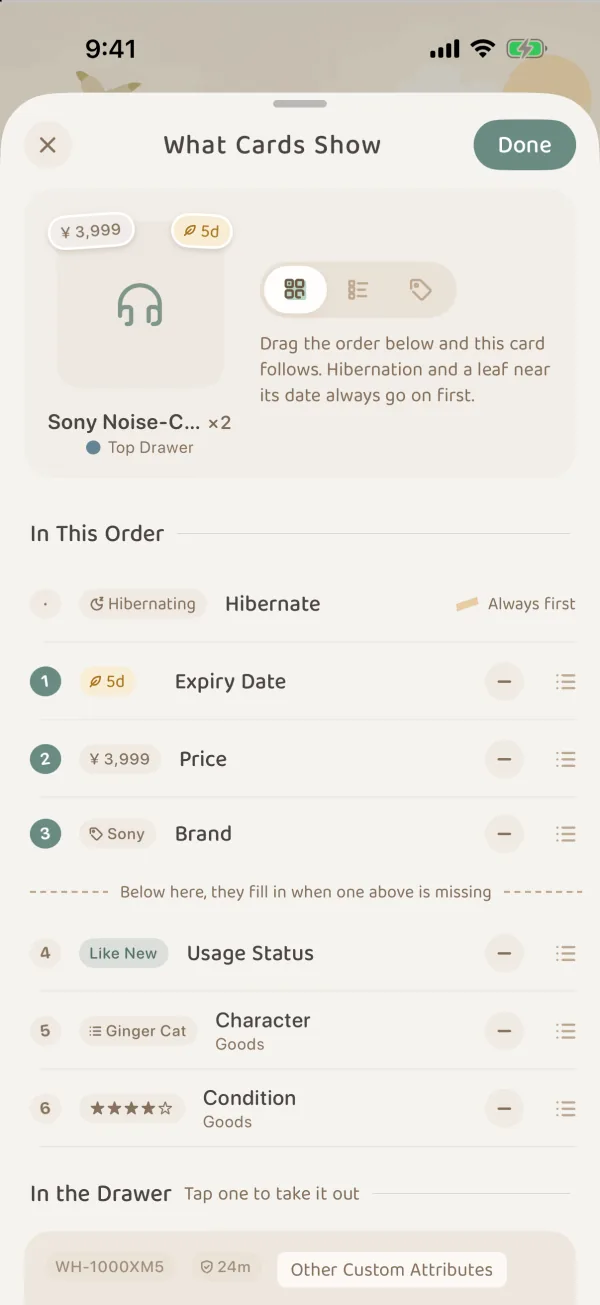
- At the top of the page is a real item card. You can switch between Specimens, Index and Luggage Tags to see how it looks.
- In This Order: drag the marks to change their order. Below the first three is a dashed line that says “Below here, they fill in when one above is missing”: if an item has nothing for one of the first three, the next one down takes its spot.
- For marks you do not want, tap − on that row to put it In the Drawer. Tap a mark in the drawer to add it to the end of the order.
- Tap Done to save, or ✕ to close without saving. To go back to how it started, use Back to the default order.
The marks you can arrange are expiry date, price, brand, model, usage status, warranty information, purchase date, and the category’s custom attributes. The hibernation moon and the leaf for something about to expire always come first, and the quantity is pencilled after the name, so none of them take up one of the three spots.
Handy combinations
| What you want to do | View | Arrange |
|---|---|---|
| Recognize a particular thing | Specimens | Name, A to Z |
| Take stock of a room | Index | Group by location |
| Check food and medicine about to expire | Luggage Tags | Group by expiry status, expiring soonest first |
| See what you tidied recently | Index | Date Modified, recently changed first |
Touch and hold an item
Touch and hold a card for a menu with Select (start multi-select), Pin, Edit, Hibernate (or Wake Up) and Farewell. Once you open an item, you can swipe left and right to look at one item after another. See Item Pages.
Tidy-up tools: change many items at once
- Tap the small trowel in the tool row (multi-select), or touch and hold an item and choose Select. Tap cards to pick up items, and the top shows “N picked”. You can also tap Select All.
- The Tidy-up tools roll open at the bottom: Transplant (change place), Categorize, Tags, Details (change attributes in bulk), Hibernate or Wake Up, Basket, Share and Farewell.
- Tap a tool and follow the prompts.
- Tap Done to stop picking.
Pick up a few items and tap Share to open the Forest Press and print them on one Field Guide page or as a whole set.
Narrow things down with a category tab or Filter first, then tap Select All. It is faster than picking items one by one. The first time you use a tool, try it on two or three items.
Batch actions only work on your own items. Items in a shared grove are tidied from inside that grove.
Common questions
Why can’t I see some items in Items anymore?
Check in this order:
- Does the Filter button have a yellow dot? If so, tap the ✕ in the tool row to clear the filters.
- Is a category tab selected? Tap All.
- Is it hibernating? Hibernating items are normally hidden, but searching for the name finds them. To list everything, change State in Filter to All Items.
- Did you say farewell to it? Items you said farewell to are in Memories; deleted items are in More › Recycle Bin.
Does changing the view, order or grouping change my items?
No. It only changes how they look, their order and how they are split into sections.
Why doesn’t a card show the mark I put first?
The item may have nothing for that mark, so the next one fills in. The hibernation moon and the leaf for something about to expire also always go on first.
Where are the filters for custom attributes?
Pick a category under What in Filter first, and its custom attributes appear. If they do not, open that category in More › Categories & Tags and check that the attribute has Enable in Filters turned on. See Categories & Custom Attributes.