Look & Forest Sign
App Version v4.0.0Forest Sign & Forest Atmosphere
Switch between Daytime, Moonlit Night or System from the forest card at the top of More, and give your Home Screen a new Forest Sign: Autumn · Ginkgo, Original, and the spring and summer signs you unlock with stamps.
Updated on Nov 3, 2026 ~9 min read
On this page
Forest Atmosphere decides whether the app shows day or a moonlit night. The Forest Sign is the app icon on your Home Screen. Both live in one place: open More at the bottom, and the forest card at the top has a Forest Atmosphere row.
From left to right, the row has:
- Forest Atmosphere and the light you are using now;
- a small patch of sky: tap it to change the light;
- a thumbnail of the sign you have up now: tap it to open Forest Sign.
Forest Atmosphere
| Light | What it does |
|---|---|
| Daytime | Always uses the bright daytime colors |
| Moonlit Night | Always uses the dark moonlit colors |
| System | Follows your iPhone’s Light or Dark appearance |
- Tap the patch of sky to go through Daytime, Moonlit Night and System in turn.
- Touch and hold it to pick one from a list.
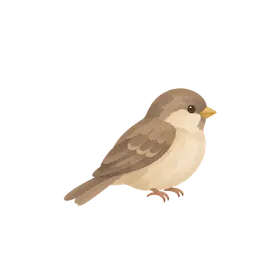
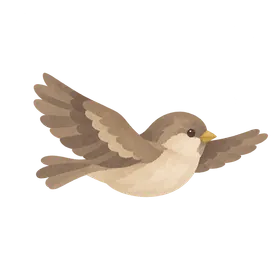
With System, the sky shows half sun, half moon. In Moonlit Night, the little sparrow that brings letters becomes a little owl.
Forest Sign
| Sign | How to get it |
|---|---|
| Autumn · Ginkgo | The default icon, also the one shown on the App Store |
| Original | The first icon. You can switch back to it any time |
| Spring · Sakura | Collect the Stories in Bloom stamp: leave memories for 5 items |
| Summer · Green | Collect the Lush Greenery stamp: plant 50 items in total (items you said farewell to or deleted still count, and you can collect it on the free plan) |
| Winter · Snow | Already hanging, marked Coming in December. You cannot use it yet |
Putting up a sign
- Open More and tap the sign thumbnail at the right of the Forest Atmosphere row.
- Forest Sign lists every sign. The one you are using is marked In use.
- Tap Use next to the one you want.
- iOS shows a message once to say the icon has changed. Go back to your Home Screen to see the new sign.
Signs you have not unlocked yet are paler. Under them it says “Collect the “…” stamp”, with what to do and your progress so far, such as “12 / 50”.
On the Home Screen, the sign follows your iPhone’s appearance setting for light or dark, not the Forest Atmosphere inside the app.
Unlocking the spring and summer signs with stamps
Once you collect Stories in Bloom or Lush Greenery, that sign in Forest Sign carries a New mark and says “Unlocked with the “…” stamp” underneath. If you open that stamp in the Forest Stamp Book, you also see “This stamp unlocked the “…” sign” with a Use button, so you can switch from there.
A twig that changes with the seasons
The ··· wooden sign at the top right of the Forest page hangs from a little twig. The twig changes with the month:
| Season | Months | On the twig |
|---|---|---|
| Spring | March–May | Cherry blossoms, buds and young leaves |
| Summer | June–August | Deep green leaves |
| Autumn | September–November | Ginkgo fans, a red maple leaf and a winged seed |
| Winter | December–February | Snow and one last leaf |
When you pull down the list or press the wooden sign, the twig shivers. In spring a few petals fall, in autumn a winged seed drops, and in winter a little snow falls. Leaves never fall: in MononoMori, a falling leaf means something is about to expire.
FAQ
Do I need a paid plan to change the sign?
No. You can switch to Autumn · Ginkgo or Original any time. The spring and summer signs only need the matching stamp.
Why does a message pop up when I change the sign?
That is how iOS works: every time an app icon changes, the system says so once. Just tap OK.
What if the sign does not change?
If Forest Sign shows “The sign couldn’t be changed. Please try again in a moment.”, wait a little and tap Use again.