Caring Together
App Version v4.0.0Shared Groves: Inviting Companions
Look after a grove together with family or friends: create a new shared grove or share one you have, invite companions and choose their roles, see how many companions each plan allows, and how companions join.
Updated on Nov 3, 2026 ~21 min read
On this page
You can look after a grove together with family or friends. The people you invite are called companions. They see the grove in their own forest, and everyone sees the same places and items. Who added, changed or asked to remove what shows up in Grove News.
Sharing works one grove at a time: you decide which grove to share, and your other groves stay yours alone.
Before you share
- iCloud is required: shared groves work through iCloud. Each companion needs MononoMori on an iPhone, iPad or Apple-silicon Mac, signed in to their own Apple Account (iCloud).
- Inviting needs Plus or Premium: Plus can share with 1 companion, Premium with up to 6. The free plan cannot invite anyone, but joining someone else’s grove is free on any plan. Only the person who invites pays, so either of you can be the one who buys; for two people, one Plus is enough.
- Companions are counted by person: your count is the number of different people across all the groves you keep. One person tending several of your groves takes only one spot. People you have invited who have not joined yet count too.
- The whole grove is shared: every place, item, photo, note and attachment in the grove is shared with your companions. Your baskets, Memory Books, Memory Forest and Recycle Bin stay private.
| Plan | Companions you can invite | Joining someone else’s grove |
|---|---|---|
| Free | None | Free |
| Plus | 1 | Free |
| Premium | Up to 6 | Free |
Creating a new shared grove
Good when you want to start recording together from scratch, such as the storage room at home or the family’s camping gear.
- Open Forest at the bottom, tap ··· at the top right of the grove list, and choose Create Shared Grove. Or tap New Shared Grove in More › Shared Groves.
- Enter a name for the grove and tap Create Shared Grove.
- The new grove is empty, and you can invite companions right away (see below).
Sharing a grove you already have
A grove you have already recorded can be shared as it is, with its places and items kept.
-
In My Forest (the list of groves that Forest at the bottom opens), touch and hold the grove’s card and choose Share This Grove…. Or choose Share an Existing Grove… from the ··· menu and pick a grove.
-
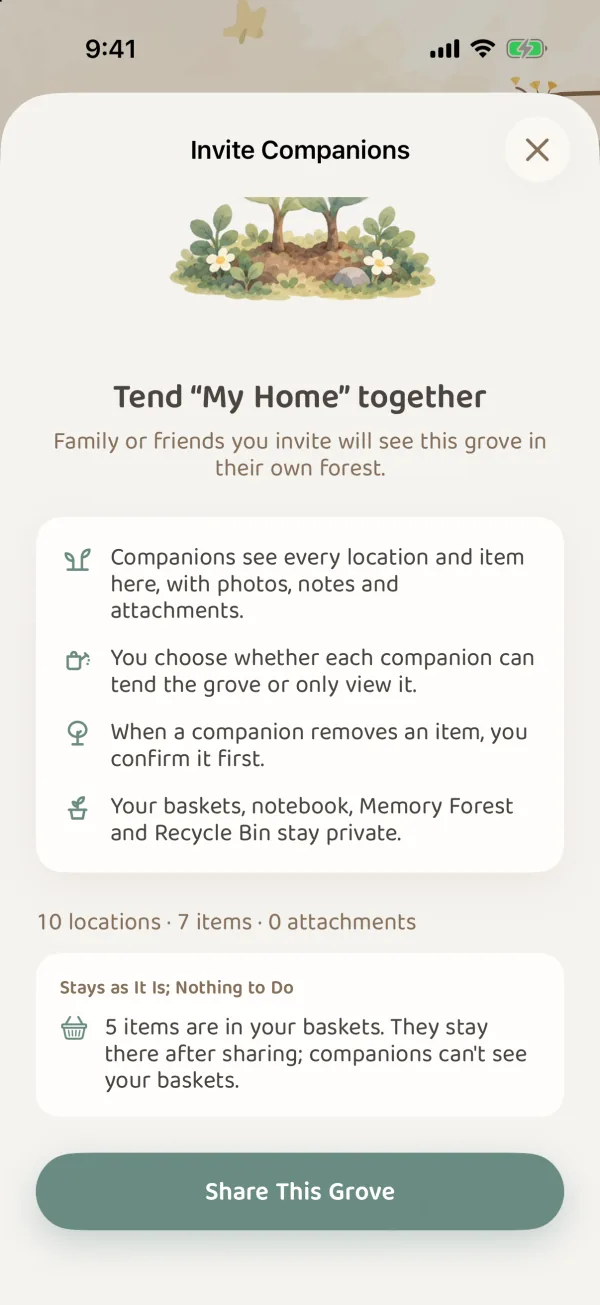
The Invite Companions page first explains what sharing means:
- Companions can see every place and item in the grove.
- You choose whether each companion can tend or only view.
- When a companion wants to remove an item, you agree first.
- Your baskets, Memory Books, Memory Forest and Recycle Bin stay yours alone.
Below that, it shows how many places, items and attachments the grove has.
-
If anything needs handling first, it is listed in groups:
- Needs Your Decision: for example, an item connected to something in your Memory Forest or Recycle Bin (tap Unlink), or an item with a batch kept outside this grove (tap Split Off or Move Into This Grove).
- Can Be Tidied Automatically: only old records that point to things that no longer exist. Just tap Tidy Up.
- Stays as It Is; Nothing to Do: only for your information. For example, items in your baskets stay in your baskets after sharing, and companions cannot see your baskets.
-
When everything is handled, tap Share This Grove. The grove moves into the shared forest; keep MononoMori open while it does. If it is interrupted, no data is lost, and you can continue from the grove list.
-
When you see ”“…” is ready to share”, tap Invite Companions. You can also send invitations later from the grove’s menu.
Items from this grove already in your Memory Forest or Recycle Bin still belong to you and are not shared. If you later bring one of them back into the shared grove, it is shared again.
Inviting companions
-
There are two ways to open the Invite Companions page:
- When sharing finishes, tap Invite Companions on the page.
- To invite later: in My Forest, open the shared grove, tap the two small leaves next to the grove’s name to open Tend This Grove, and tap Invite Companions under Companions.
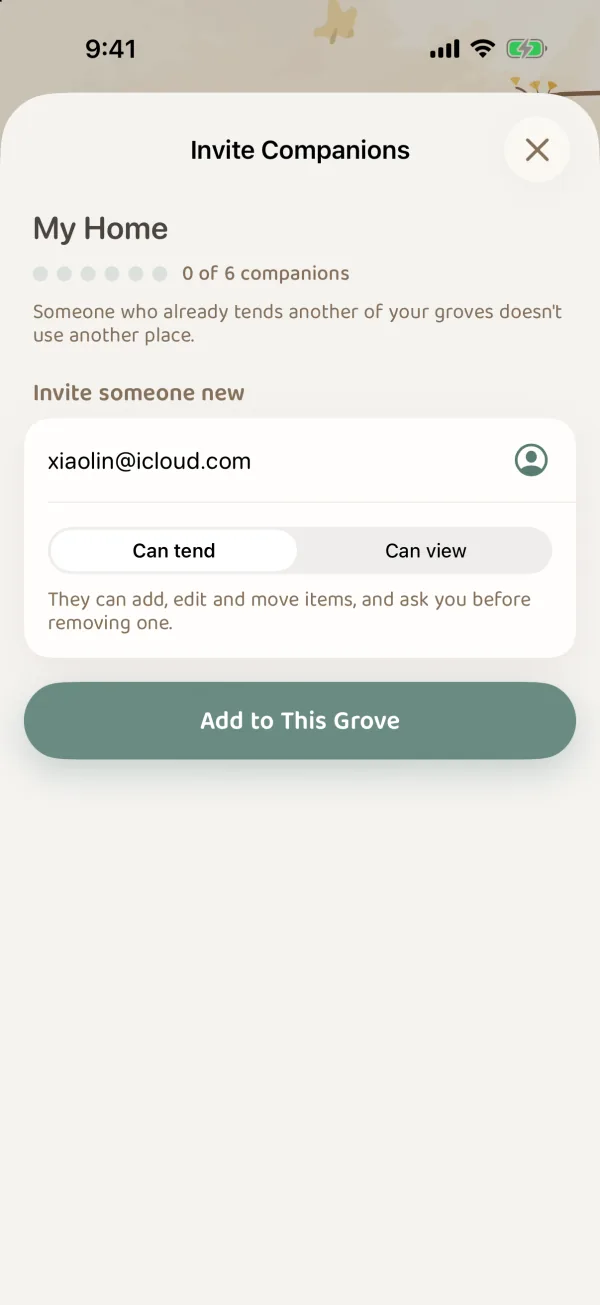
The top of the page shows your count, such as “0 of 6 companions”.
-
Under Invite someone new, enter the email or phone number they use for their Apple Account, or tap the icon on the right to Choose from Contacts. People already tending your other groves appear under From your other groves. Just tap Add; they do not take another spot.
-
Below, choose Can tend or Can view:
- Can tend: they can add, edit and move items. Before removing an item, they need your OK.
- Can view: they can browse and search, but cannot change anything.
-
Tap Add to This Grove.
-
When you see ”… was added. Send them the invitation link.”, tap Send Invitation and send the link by Messages, Mail or another way. Only the people you added can open this link.
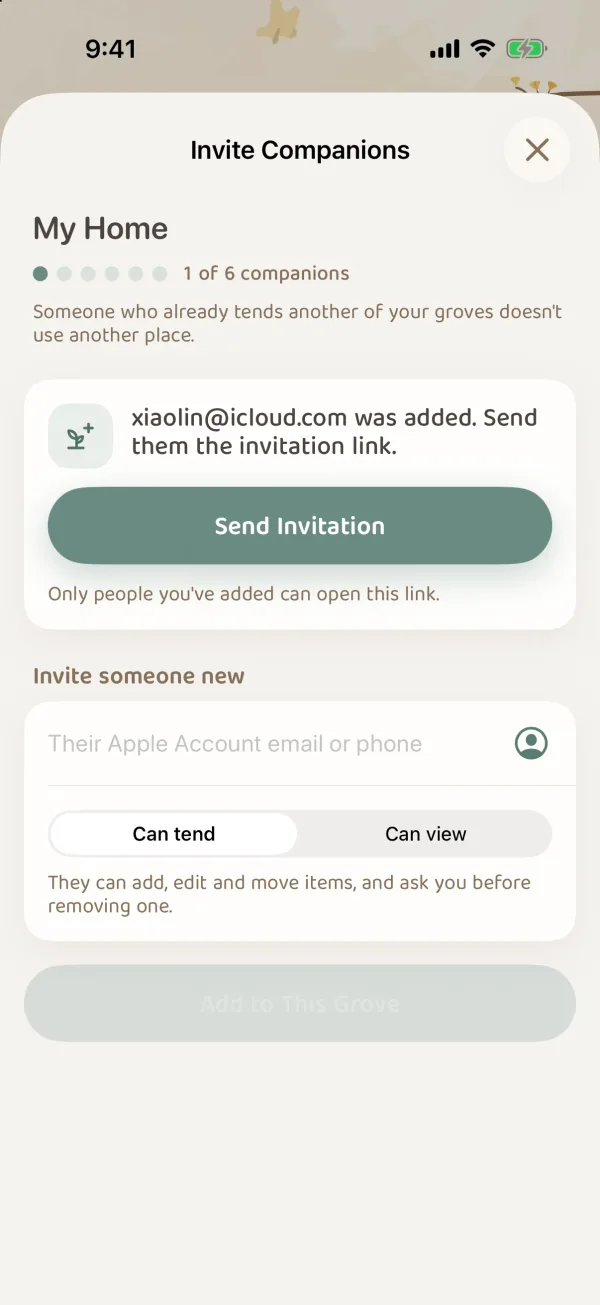
If you see “No iCloud account was found for that email or phone”, check with them that it is the email or phone number they use to sign in to their Apple Account. When you have used all your spots, you see “You’ve reached your companion limit”. Upgrade your plan or remove a companion first.
How companions join
- They open the invitation link on a device that has MononoMori and is signed in to iCloud. MononoMori shows “Joining “…”…”, and when it is done: “You’re now tending “…”. Find it in your forest.”
- The grove appears in their own My Forest, with a small leaf next to its name. They need no paid plan.
- Once they join, you get a notification: “A New Companion”.
- If the invitation has expired, they see “The invitation is no longer available.” Send the invitation again.
Seeing everything in More › Shared Groves
More › Shared Groves brings together everything about sharing:
- Your plan and your count: such as “3 of 6 companions”.
- How Companions See You: a name and photo shown instead of your email address in every grove you keep or join.
- Groves You Keep and Groves You’ve Joined: each one shows how many companions it has, or “Kept by …” and your role. New Shared Grove and Share a Grove are here too.
- Companions: tap a companion to give them a nickname only you can see, such as “Mom”.
- Grove News and Expiry Reminders (the main switch for expiry letters about items in shared groves; see below).
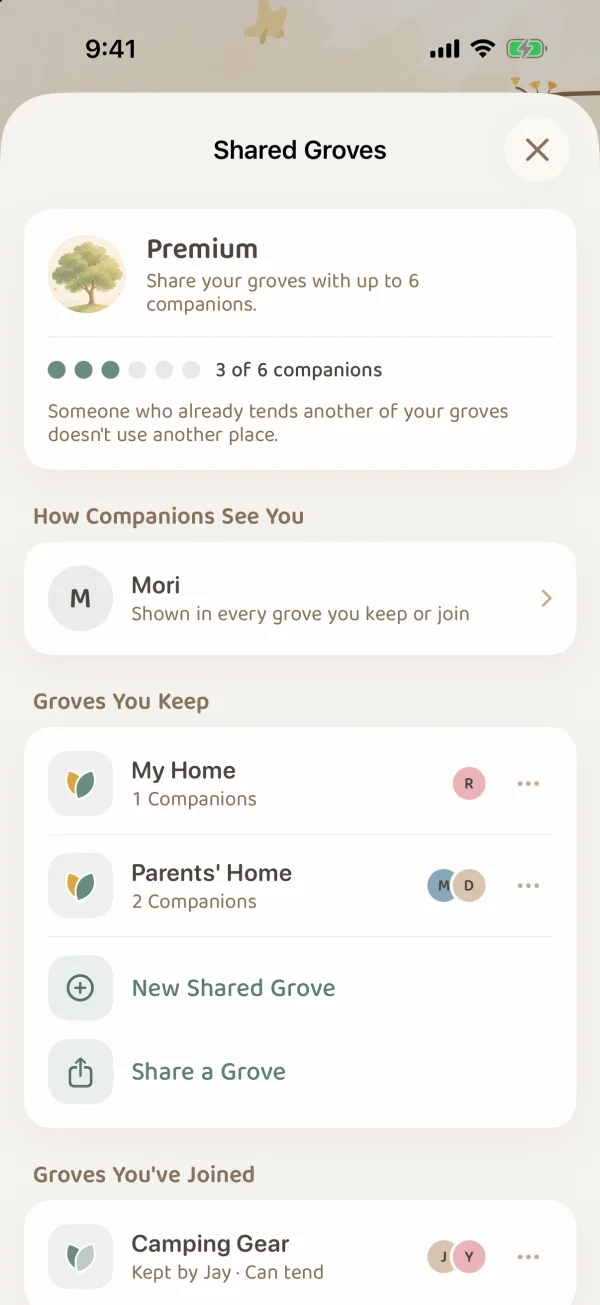
The name and photo in How Companions See You are optional. They are stored in MononoMori’s public iCloud database, where other MononoMori users may see them, including people who are not in your groves. Use a nickname and photo you are happy to make public. Clear the name and photo to remove them.
Expiry letters for shared groves
When items in a shared grove are about to expire, you get letters just as for your own items, merged into the same letter, and at most one a day.
Expiry Reminders on the Shared Groves page and More › Expiry Reminder control the same letters, just with different reach:
- To turn off letters for all shared groves: turn off Expiry Reminders in More › Shared Groves. Letters about your own forest are not affected.
- To turn off just one grove: turn it off under Shared Groves in More › Expiry Reminder. A grove turned off sends no letters, but its leaves still show in Leaf Gathering.
For letter times, lead times and other settings, see Leaf Gathering and Expiry Letters.
Next
- Shared Groves: Roles, News and Leaving: what each role can do, how removing items is confirmed, what happens when your plan changes, and how to leave or stop sharing.
- Looking After Home Together: a full family example.
- Forest Guardian Plans: a full comparison of the plans.