Everyday Care
App Version v4.0.0Status Management & Ratings
Mark items with a usage status (Brand New, In Use, Lent, Low Stock…), add, edit, reorder and merge statuses of your own, and filter items by status. You can also use statuses as ratings, such as season or how much you love something.
Updated on Nov 3, 2026 ~17 min read
On this page
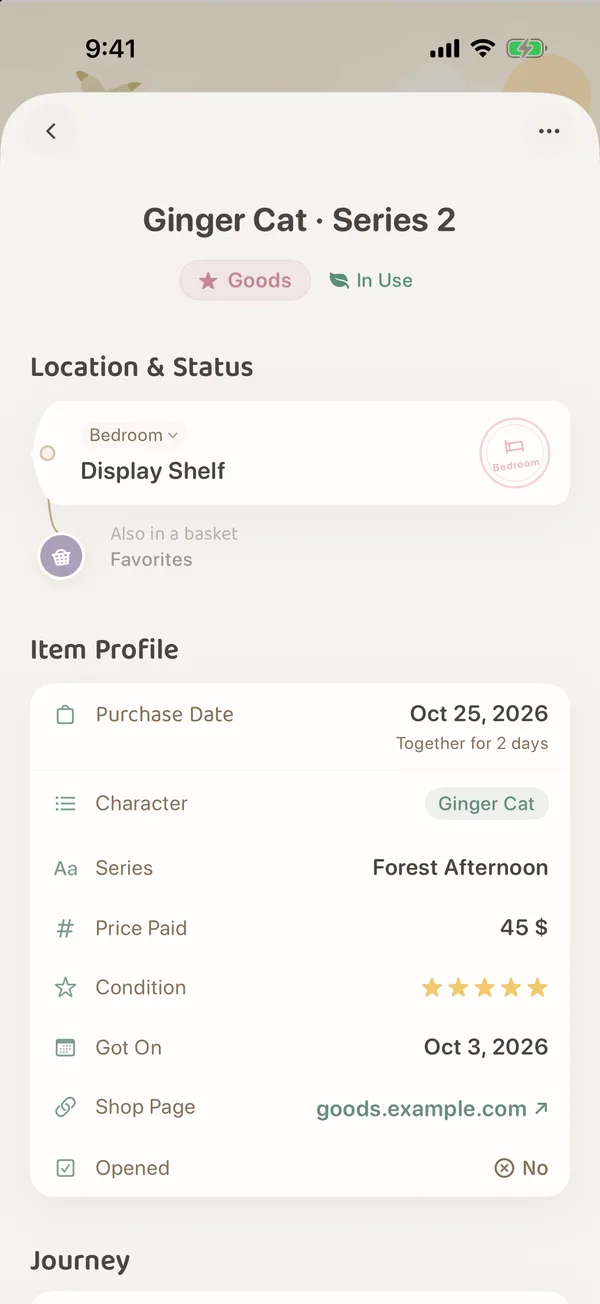
A Usage Status records how an item is doing right now: in use, sitting idle, lent to a friend, or nearly used up. Each item gets one status. It shows next to the category on the item page, and you can filter items by status in Items, for example to list everything that is Low Stock before you shop.
The list of statuses is shared across your whole forest. You can rename them, change their colors and add your own.
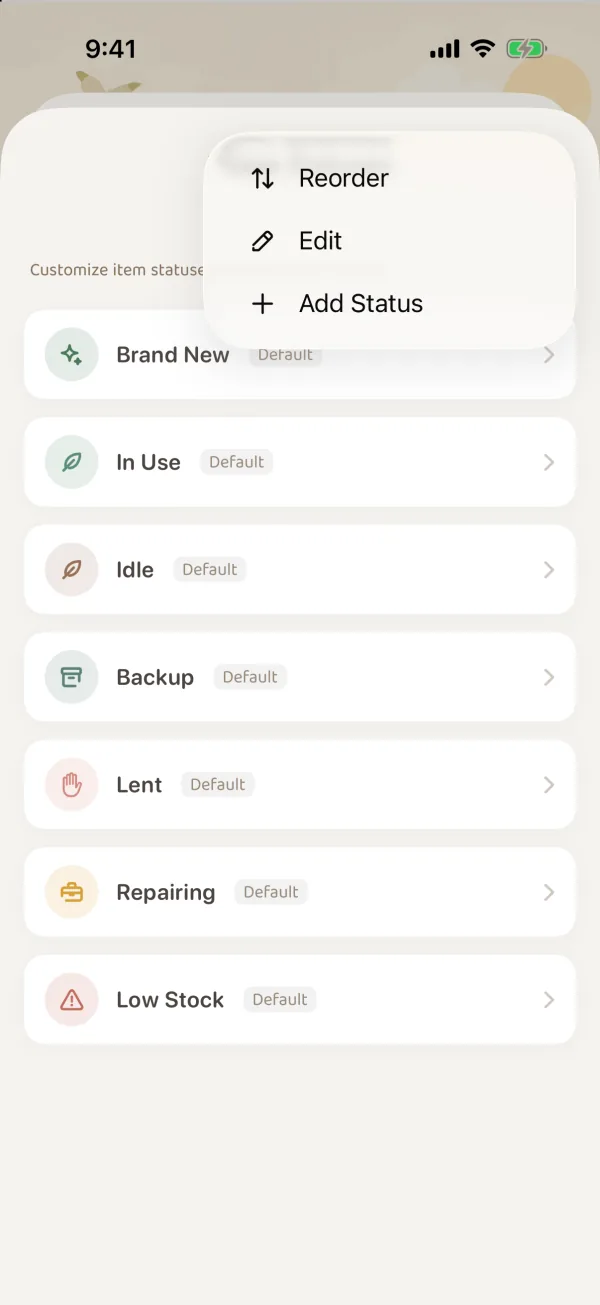
The 7 built-in statuses
| Status | When it fits |
|---|---|
| Brand New | Just bought and still unopened, or new items you keep in stock |
| In Use | Things you are using now |
| Idle | Not in use for now, but still close at hand |
| Backup | Spare cables, replacement filters, emergency supplies |
| Lent | Books, tools or camping gear you lent to someone |
| Repairing | Things out for repair or servicing |
| Low Stock | Supplies running low that need restocking |
Built-in statuses are marked Default in the list. You can still rename them, change their color or delete them. A built-in status you rename is no longer marked Default, and its name no longer changes with the app’s language.
Choosing a status for an item
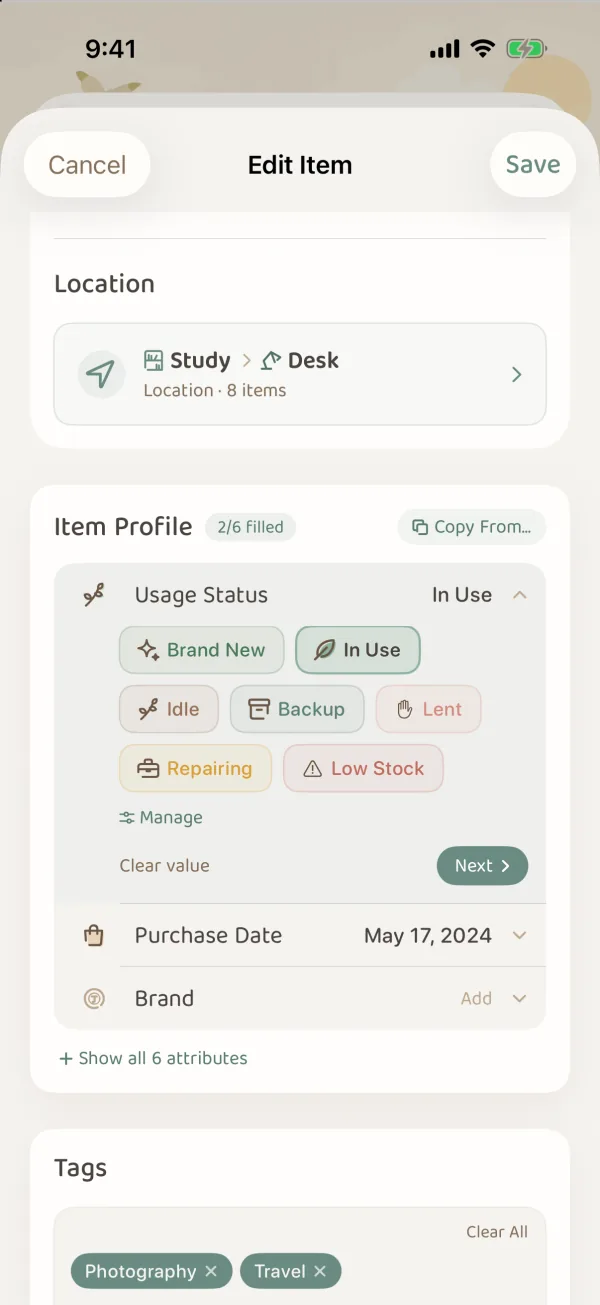
- Open the item, tap ··· at the top right and choose Edit (it works the same when you add an item).
- In Item Profile, tap the Usage Status row.
- Tap a status to choose it. Tap the chosen status again to clear it.
- Tap Save.
The status then shows under the item’s name on its page, next to the category.
If Item Profile has no Usage Status row, the item’s category has not turned it on. Go to More › Categories & Tags, edit the category, and turn on Usage Status under Built-in Attributes in Attributes.
When an item is split into batches, each batch gets its own status, and Item Profile no longer has this row. See Manage by Lots.
Managing the status list
You can open the Usage Statuses page from two places:
- While editing an item, tap Manage under Usage Status.
- In More › Categories & Tags, edit a category and tap Manage N Statuses under Usage Status in Built-in Attributes.
Both open the same list. There is no need to make a set for each category.
On the Usage Statuses page, the settings button at the top right opens a menu with Reorder, Edit and Add Status:
| To do this | Do this |
|---|---|
| Change a name, color or icon | Tap the status |
| Add a new status | Choose Add Status from the menu at the top right |
| Change the order | Touch and hold a status and drag it, or choose Reorder from the menu at the top right |
| Delete a status | Swipe left on it and tap Delete |
| Merge or delete several at once | Choose Edit from the menu at the top right, tick the statuses, and tap Merge Selected or Delete at the bottom |
The order of the list is the order statuses appear in when you edit an item.
Adding your own status
- Choose Add Status from the menu at the top right.
- Write a name in Status Name, up to 16 characters, such as “At the Cleaners” or “Lent to Sam”.
- Pick a Theme Color and an Icon. The preview at the top shows how it will look.
- Tap Save.
Deleting and merging
When you delete a status that items still use, the app asks what to do with them:
- Clear Status (Set to None): the items stay, they just no longer have a status.
- Migrate Items to: …: switch them to another status.
To merge, pick one of the ticked statuses with Keep as Target. Items with the other statuses move to it. Then tap Confirm Merge. Deleting or merging statuses never deletes items.
Filtering items by status
- In Items, tap Filter.
- Go to State, and under Item Condition tap one or more statuses. To find items with no usage status yet, tap No Status (when you group by status, they are in the Unassigned group).
- Tap Show N at the bottom.
Choose Low Stock, for example, and you have a shopping list. Choose Lent to see what you lent out that has not come back. The notes in Forest Insights also remind you by status: things lent out and not back yet, things out for repair, things nearly used up. For the other Filter conditions, see Items: Filter, Arrange & Marks.
Using statuses as ratings
You decide a status’s name, color and icon, so it does not have to be only about new or old, lent or back. When a category only cares about one thing, a status can rate that one thing:
| What to record | Statuses you could make |
|---|---|
| Which season clothes are for | Spring/Fall, Summer, Winter, All Year |
| How much you love it | Favorite, Everyday, Still Deciding, To Give Away |
| How skincare worked for you | Will Rebuy, For Season Changes, Getting Used to It, Not for Me |
| Where you are with a book | Reading, Want to Read, Finished, Keeper |
The status list is shared by every category. The more rating statuses you make, the more you have to pick from when you edit an item. If you want to record several kinds of rating at once, add a custom field to the category instead (such as “Season” or “Rating”). See Categories & Custom Attributes.
FAQ
Can an item have two statuses at once?
No, each item has one status. If you have several of the same thing in different states (one bottle open, one still sealed), split it into batches and give each batch its own status. See Manage by Lots.
How is a status different from hibernation?
A status is just a mark on the item. The item still shows in Items and on the forest map as usual. Hibernation tucks an item away from everyday browsing and the map, which suits things you will not use for a long time. See Item Hibernation.
Whose statuses do items in a shared grove use?
The grove’s own status list. When you edit an item in a shared grove you can choose a status, but there is no Manage button, and the status list in your own forest is not changed.