Storage Cleanup & Maintenance Utilities
Inspect local storage consumption, clean caches, temporary files, and orphaned attachments, and distinguish spreadsheet exports from data resets.
Page Overview
Storage Cleanup & Utilities: Keeping Your Forest Light and Nimble 🧹
“Like a real woodland, your digital forest flourishes with regular pruning and mindful care. MononoMori provides transparent utilities to keep your app responsive and storage clean.”
As you log more beloved possessions, memories, and high-resolution photos, you might naturally wonder: “How much space is MononoMori taking on my device?” and “How can I reclaim storage without losing my memories?”
Inside Data Management, you can inspect exact storage allocations, clear temporary files, purge disconnected attachments, export spreadsheets, and access reset controls safely.
🛠️ Exploring the Data Toolbox
Navigate to “More” > “Data Management” in the bottom bar to find the maintenance tools:
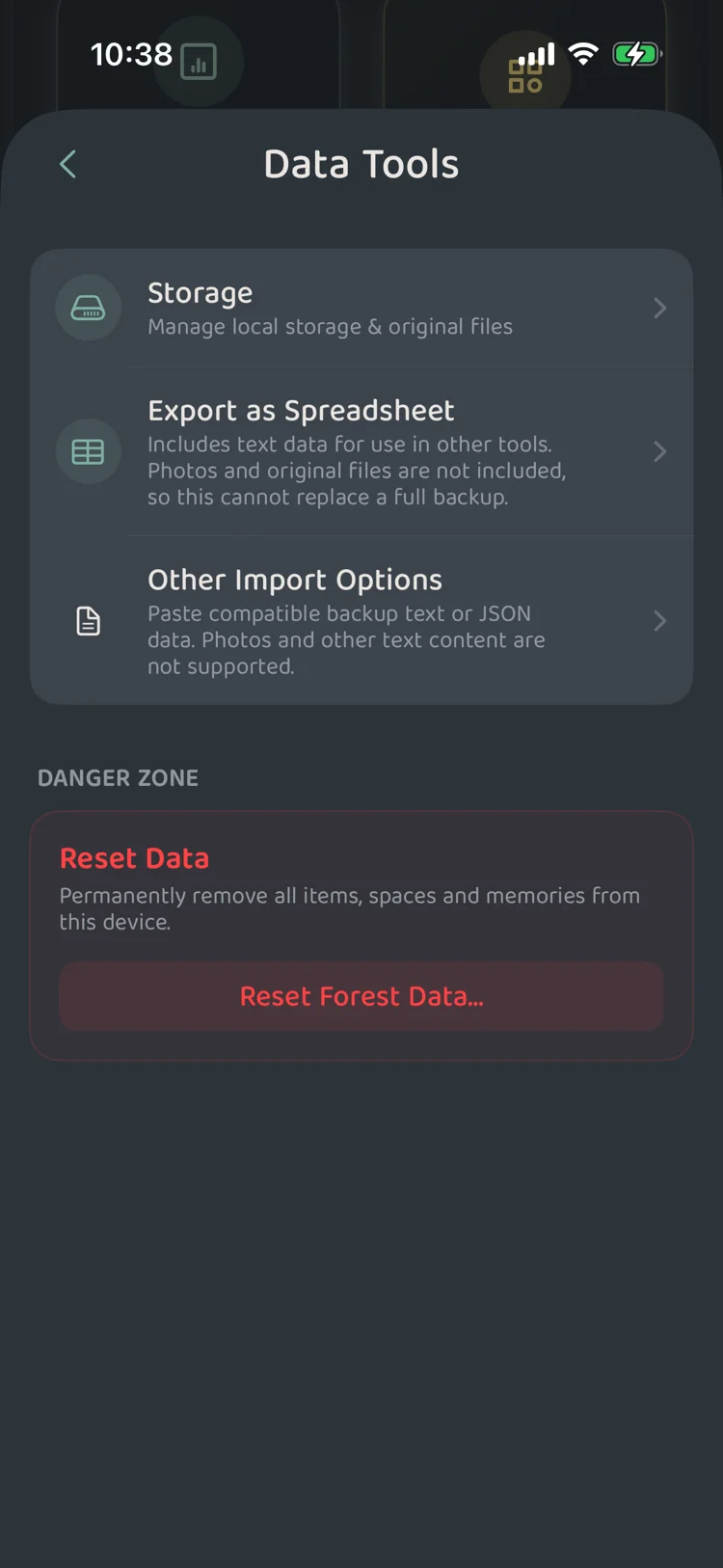 Figure 1: Data Toolbox main utilities
- Storage: Review detailed storage breakdowns and run targeted cleanup tools.
- Export as Spreadsheet: Export item metadata into standard CSV spreadsheets (photos excluded).
- Other Import Options: Import supported text or JSON schemas.
- Reset Data: Access targeted reset controls for local or cloud environments.
📊 Storage Breakdown: Where Space Is Used
Tap “Storage” to reveal a clear accounting of your device usage:
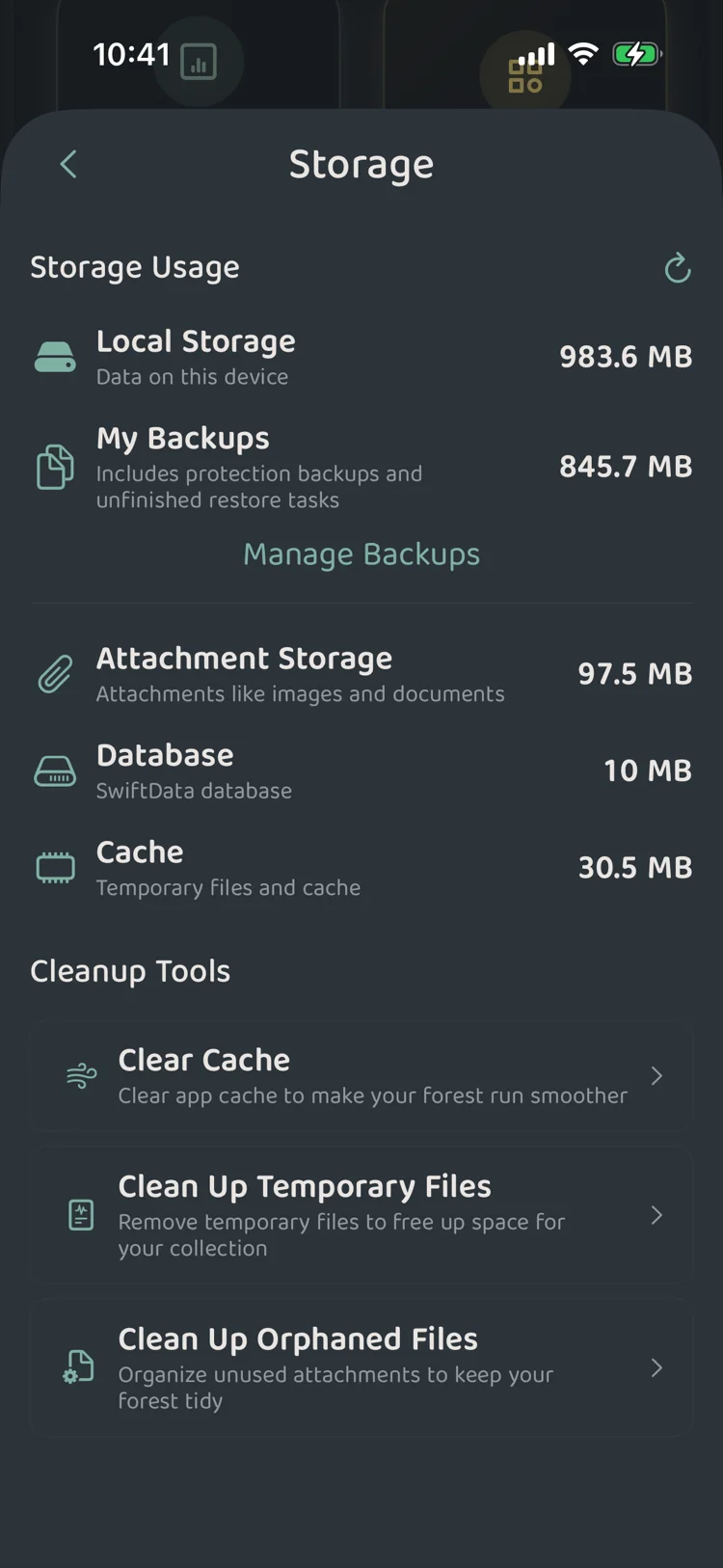 Figure 2: Storage usage breakdown and maintenance actions
Breakdown Categories
- Local Storage: Total footprint consumed by the application on this device.
- My Backups: Space utilized by stored in-app backup archives.
- Attachment Storage: High-resolution photos, documents, and attachments associated with your items.
- Database: Structural metadata including groves, locations, tags, and timeline events.
- Cache: Fast temporary storage used to accelerate gallery scrolling and image loading.
🧼 Three Targeted Cleanup Tools
At the bottom of the Storage screen, three specialized maintenance actions help you recover device space safely:
1. Clear Cache
- What It Does: Empties temporary image thumbnails and layout caches without touching any of your actual records.
- When to Use: If list scrolling feels sluggish or cache size creeps upward after intense browsing sessions.
2. Clean Up Temporary Files
- What It Does: Purges temporary files left behind from completed exports, imports, or share sessions.
- When to Use: Run periodically after generating large PDF handbooks or importing backups.
3. Clean Up Orphaned Files
- What It Does: Scans storage for stray images or attachments whose parent items were previously deleted, freeing up wasted space.
- When to Use: Ideal after major decluttering sessions where dozens of items were permanently purged.
📑 Exporting to Spreadsheets (CSV)
Tapping “Export as Spreadsheet” exports all text metadata—names, locations, purchase prices, dates, and categories—into a clean CSV file.
- Relocation Checklists: Share printable packing lists with moving companies.
- Annual Asset Reviews: Calculate home inventory value across categories in Numbers or Excel.
- Insurance Filings: Generate structured documentation for claims or policies.
⚠️ Reminder: Spreadsheets contain text data only; photos and full relational history are excluded. Always use full backups for total data recovery.
🚨 Resetting Data
Located at the bottom of the Data Tools screen, Reset Data provides two explicit scopes:
- Reset Local Data: Erases data on the current device while leaving cloud-synced iCloud data untouched.
- Reset iCloud Data: Permanently clears both iCloud records and local data simultaneously. Proceed only when you wish to reset your entire digital estate from scratch.