Backup & Sync Strategy
Understand the vital difference between synchronization and backups, master iCloud auto-sync, and establish a triple-protection safety net.
Page Overview
Backup & Sync: Dual Protection for Your Living Records 🛡️
“Sync keeps qualified devices up to date with current data; backups preserve point-in-time snapshots that can be inspected and restored later. They serve distinct purposes and cannot replace one another.”
Users frequently ask: “If I am already using automatic iCloud synchronization, why do I still need manual backups?”
MononoMori summarizes this distinction succinctly inside Data Management:
“Sync keeps devices up to date. A backup keeps data you can restore later.”
Understanding this difference allows you to establish a robust data strategy.
☁️ iCloud Sync: Effortless Continuity
When using MononoMori across multiple Apple devices signed into the same Apple account, iCloud Sync seamlessly propagates updates across your devices:
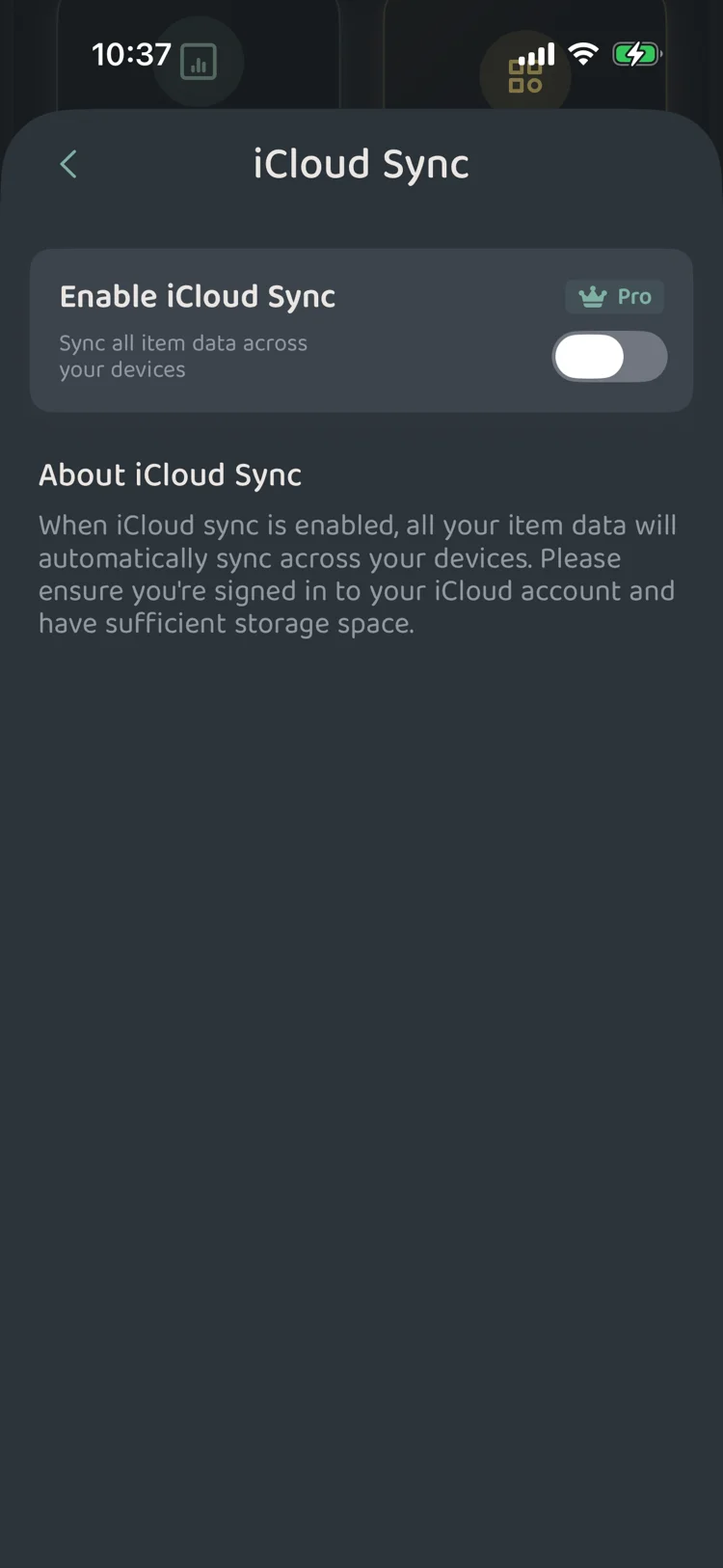 Figure 1: iCloud sync status and configuration entry
Key Characteristics
- Multi-Device Cohesion: Edits made on your iPhone appear naturally on your iPad.
- Network & Account Dependent: Sync requires an active internet connection, sufficient iCloud storage, and healthy account credentials. Brief offline periods queue updates locally until connection resumes.
- Live Status Monitoring: Data Management clearly indicates whether sync is Idle, In Progress, Complete, or Paused due to quota limits.
How to Enable
- Open “More” in the bottom navigation bar and select “Data Management”.
- Tap “iCloud Sync” to review current status and requirements.
- Toggle sync on according to on-screen guidance. Ensure all target devices share the same Apple account with adequate cloud storage.
⚡ Why Backups Remain Essential Alongside Sync
Consider this everyday analogy:
- Sync is a live mirror: If you accidentally delete a beloved item or overwrite important notes, that deletion is promptly mirrored across all connected devices. Sync does not function as an undo button or time machine.
- Backups are frozen snapshots: A backup captures a stable point in time. If mistakes occur or a major reorganizing session goes awry, you can preview and restore records safely.
🛡️ The Triple-Protection Strategy
To safeguard your living records like vital personal certificates, we recommend this straightforward triple-protection habit:
- Level 1 (In-App Pin): Tap "Back Up Forest" after major tidying, and toggle on "Pin to Keep This Backup 📌" inside the backup card.
- Level 2 (Files App Export): In backup details, tap "Save to Files" to store an archive within iOS Files or iCloud Drive.
- Level 3 (Off-Device Vault): AirDrop the backup file to your Mac or transfer it to an external drive or secondary cloud vault.
🔄 Sharing Inventory Sets with Family
When passing records to a partner or family member:
- Tap “Back Up Forest” on your device.
- Open the backup card and tap “Share Backup”.
- Transmit via AirDrop or messaging.
- On the recipient device, tap “Restore from a File” and choose the received package.
- Review the transparent Import Preview to inspect incoming assets and merge safely.
✅ Daily Data Hygiene Checklist
- Backup Before Major Changes: Always snapshot your forest before house moves or whole-home decluttering.
- Retain an Off-App Copy: Ensure critical archives reside beyond the app sandbox via “Save to Files”.
- Inspect Before Restoring: Use Import Previews to review counts and prevent unintended duplicates.